
User Manual
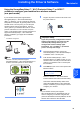

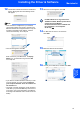

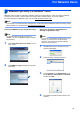
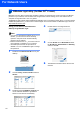
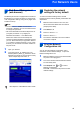
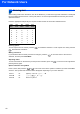

Table Of Contents
- Quick Setup Guide MFC-7840W
- Symbols used in this guide
- Table of Contents
- Getting Started
- STEP 1 Setting Up the Machine
- STEP 2 Installing the Driver & Software
- Supplied CD-ROM ‘MFL-Pro Suite’
- Windows®
- For USB Interface Cable Users (For Windows® 2000 Professional/XP/XP Professional x64 Edition/Windows Vista®)
- For Wired Network Interface Users (For Windows® 2000 Professional/XP/XP Professional x64 Edition/Windows Vista®)
- For Wireless Network Interface Users (For Windows® 2000 Professional/XP/XP Professional x64 Edition/Windows Vista®) in infrastructure mode
- Connecting your wireless machine and wireless network together and installing the printer driver in infrastructure mode
- Using the Setup Wizard from the control panel LAN menu for wireless network configuration
- Using the SecureEasySetup™, Wi-Fi Protected Setup™ or AOSS™ software to configure your machine for a wireless network (one-push method)
- Macintosh®
- For USB Interface Cable Users
- For Wired Network Interface Users
- For Wireless Network Interface Users (For Mac OS® X 10.2.4 or greater) in infrastructure mode
- Connecting your wireless machine and wireless network together and installing the printer driver in infrastructure mode
- Using the Setup Wizard from the control panel LAN menu for wireless network configuration (Infrastructure Mode)
- Using the SecureEasySetup™, Wi-Fi Protected Setup™ or AOSS™ software to configure your machine for a wireless network (one push-mode)
- For Network Users
- Consumables and Options
- brother UK/IRE/SAF

Installing the Driver & Software
41
Macintosh
®
Macintosh
®
Wireless
Network
12 The Brother software will search for the Brother
device. During this time the following screen
will appear.
Note
• If the machine is configured for your network,
choose the machine from the list, and then click
OK. This window will not appear if there is only one
machine connected on the network, it will be
chosen automatically. Go to step 13.
• If this screen appears click OK.
Enter a name for your Macintosh
®
in Display
Name up to 15 characters long and click OK.
Go to step 13.
• If you want to use the machine’s Scan key to scan
over the network you must check the Register
your computer with the "Scan To" function on
the machine box.
• The name you enter will appear on the machine’s
LCD when you press the Scan key and choose a
scan option. (For more information, see Network
Scanning in the Software User’s Guide on the CD-
ROM.)
13 When this screen appears, click OK.
For Mac OS
®
X 10.3.x or greater users:
The MFL-Pro Suite, Brother printer driver,
scanner driver and Brother
ControlCenter2 have been installed and
the installation is now complete.
Go to step 18.
14 For Mac OS
®
X 10.2.4 to 10.2.8 users:
Click Add.
15 Make the selection shown below.
16 Choose your model name, and then click Add.