
User Manual
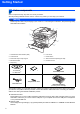

Table Of Contents
- Quick Setup Guide MFC-7840W
- Symbols used in this guide
- Table of Contents
- Getting Started
- STEP 1 Setting Up the Machine
- STEP 2 Installing the Driver & Software
- Supplied CD-ROM ‘MFL-Pro Suite’
- Windows®
- For USB Interface Cable Users (For Windows® 2000 Professional/XP/XP Professional x64 Edition/Windows Vista®)
- For Wired Network Interface Users (For Windows® 2000 Professional/XP/XP Professional x64 Edition/Windows Vista®)
- For Wireless Network Interface Users (For Windows® 2000 Professional/XP/XP Professional x64 Edition/Windows Vista®) in infrastructure mode
- Connecting your wireless machine and wireless network together and installing the printer driver in infrastructure mode
- Using the Setup Wizard from the control panel LAN menu for wireless network configuration
- Using the SecureEasySetup™, Wi-Fi Protected Setup™ or AOSS™ software to configure your machine for a wireless network (one-push method)
- Macintosh®
- For USB Interface Cable Users
- For Wired Network Interface Users
- For Wireless Network Interface Users (For Mac OS® X 10.2.4 or greater) in infrastructure mode
- Connecting your wireless machine and wireless network together and installing the printer driver in infrastructure mode
- Using the Setup Wizard from the control panel LAN menu for wireless network configuration (Infrastructure Mode)
- Using the SecureEasySetup™, Wi-Fi Protected Setup™ or AOSS™ software to configure your machine for a wireless network (one push-mode)
- For Network Users
- Consumables and Options
- brother UK/IRE/SAF

Getting Started
2
1
1
Carton components
Carton components may vary from one country to another.
Save all packing materials and the carton in case for any reason you must ship your machine.
Warning
Plastic bags are used in the packaging of your machine. To avoid danger of suffocation, keep these bags away
from babies and children.
1 Automatic Document Feeder (ADF)
2 Control Panel
3 Face-down Output Tray Support
4 Manual Feed Slot
5 Paper Tray
6Front Cover
7 Power Switch
8 ADF Document Output Support Flap
9 Document Cover
The interface cable is not a standard accessory. Please purchase the appropriate interface cable for the interface
you intend to use (USB or Network). Do NOT connect the interface cable at this time. Connecting the interface
cable is done during the software installation process.
USB interface cable
Please make sure you use a USB 2.0 interface cable that is no longer than 6 feet (2 metres). When you use a
USB cable, make sure you connect it to the USB port of your computer and not to a USB port on a keyboard
or non-powered USB hub.
Network cable
Use a straight-through Category 5 (or greater) twisted-pair cable for 10BASE-T or 100BASE-TX Fast Ethernet
Network.
1
2
5
9
3
4
8
7
6
CD-ROMs
For Windows
®
For Macintosh
®
User’s Guide
Quick Setup Guide
AC Power Cord
Telephone line Cord
Drum Unit Assembly
(including Toner Cartridge)