
User Manual


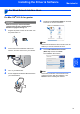

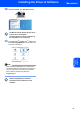


Table Of Contents
- Quick Setup Guide MFC-7840W
- Symbols used in this guide
- Table of Contents
- Getting Started
- STEP 1 Setting Up the Machine
- STEP 2 Installing the Driver & Software
- Supplied CD-ROM ‘MFL-Pro Suite’
- Windows®
- For USB Interface Cable Users (For Windows® 2000 Professional/XP/XP Professional x64 Edition/Windows Vista®)
- For Wired Network Interface Users (For Windows® 2000 Professional/XP/XP Professional x64 Edition/Windows Vista®)
- For Wireless Network Interface Users (For Windows® 2000 Professional/XP/XP Professional x64 Edition/Windows Vista®) in infrastructure mode
- Connecting your wireless machine and wireless network together and installing the printer driver in infrastructure mode
- Using the Setup Wizard from the control panel LAN menu for wireless network configuration
- Using the SecureEasySetup™, Wi-Fi Protected Setup™ or AOSS™ software to configure your machine for a wireless network (one-push method)
- Macintosh®
- For USB Interface Cable Users
- For Wired Network Interface Users
- For Wireless Network Interface Users (For Mac OS® X 10.2.4 or greater) in infrastructure mode
- Connecting your wireless machine and wireless network together and installing the printer driver in infrastructure mode
- Using the Setup Wizard from the control panel LAN menu for wireless network configuration (Infrastructure Mode)
- Using the SecureEasySetup™, Wi-Fi Protected Setup™ or AOSS™ software to configure your machine for a wireless network (one push-mode)
- For Network Users
- Consumables and Options
- brother UK/IRE/SAF

Installing the Driver & Software
31
Macintosh
®
Macintosh
®
Wired
Network
5
For Wired Network Interface Users
For Mac OS
®
X 10.2.4 or greater
Important
Make sure that you have finished the
instructions from step 1 Setting Up the
Machine on pages 4 through 11.
1 Plug the AC power cord into an AC outlet. Turn
the power switch on.
2 Connect the network interface cable to the
machine, and then connect it to your network.
3 Turn on your Macintosh
®
.
4 Put the supplied CD-ROM for Macintosh
®
into
your CD-ROM drive.
5 Double-click the Start Here OSX icon to install.
Follow the on-screen instructions.
Note
Please see the Network User’s Guide on the CD-
ROM if you want to install the PS driver.
6 Choose Wired Network Connection
(Ethernet), and then click Next.
The installation will continue.
Note
Please wait, it will take a few seconds for the
software to install. After the installation, click
Restart to finish installing the software.