
User Manual



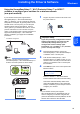


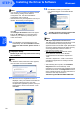
Table Of Contents
- Quick Setup Guide MFC-7840W
- Symbols used in this guide
- Table of Contents
- Getting Started
- STEP 1 Setting Up the Machine
- STEP 2 Installing the Driver & Software
- Supplied CD-ROM ‘MFL-Pro Suite’
- Windows®
- For USB Interface Cable Users (For Windows® 2000 Professional/XP/XP Professional x64 Edition/Windows Vista®)
- For Wired Network Interface Users (For Windows® 2000 Professional/XP/XP Professional x64 Edition/Windows Vista®)
- For Wireless Network Interface Users (For Windows® 2000 Professional/XP/XP Professional x64 Edition/Windows Vista®) in infrastructure mode
- Connecting your wireless machine and wireless network together and installing the printer driver in infrastructure mode
- Using the Setup Wizard from the control panel LAN menu for wireless network configuration
- Using the SecureEasySetup™, Wi-Fi Protected Setup™ or AOSS™ software to configure your machine for a wireless network (one-push method)
- Macintosh®
- For USB Interface Cable Users
- For Wired Network Interface Users
- For Wireless Network Interface Users (For Mac OS® X 10.2.4 or greater) in infrastructure mode
- Connecting your wireless machine and wireless network together and installing the printer driver in infrastructure mode
- Using the Setup Wizard from the control panel LAN menu for wireless network configuration (Infrastructure Mode)
- Using the SecureEasySetup™, Wi-Fi Protected Setup™ or AOSS™ software to configure your machine for a wireless network (one push-mode)
- For Network Users
- Consumables and Options
- brother UK/IRE/SAF

Installing the Driver & Software
28
STEP 2
Windows
®
Windows
®
Wireless
Network
Note
• You can find your machine’s IP address and the
node name by printing out the Network
Configuration List. See Print the Network
Configuration List on page 45
• If the machine is not yet configured for use on your
network, the following screen appears.
Click OK.
The Configure IP Address window will appear.
Enter an IP address for your machine that is
suitable for your network by following the on-
screen instructions.
16 The installation of the Brother drivers will
automatically start. The installation screens
appear one after another, please wait for a
while.
Improper Setup
DO NOT try to cancel any of the screens during
this installation.
Note
For Windows Vista
®
, when this screen appears,
click the check box and click Install.
17 When the On-Line Registration screen is
displayed, make your selection and follow the
on-screen instructions. Once you have
completed the registration process, close your
web browser to return to this window. Then
click Next.
18 Click Finish to restart your computer.
(You must be logged on with Administrator
rights.)
The MFL-Pro Suite has been installed and
the installation is now complete.
Note
• XML Paper Specification Printer Driver
The XML Paper Specification Printer Driver is the
most suitable driver when printing from the
applications that use the XML Paper Specification
documents. Please download the latest driver by
accessing the Brother Solutions Center at
http://solutions.brother.com/
.
• MFL-Pro Suite includes the Network Printer
Driver, Network Scanner Driver, Brother
ControlCenter3 and ScanSoft™ PaperPort™
11SE.
ScanSoft™ PaperPort™ 11SE is a document
management application for viewing scanned
documents.
• After restarting the computer, the Installation
Diagnostics will run automatically. If the
installation is unsuccessful, the installation results
window will be shown. If the Diagnostics shows a
failure, please follow the on-screen instructions or
read the on-line help and FAQ’s in
Start/All Programs/Brother/MFC-XXXX LAN.