
User Manual
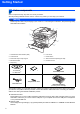

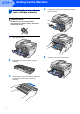
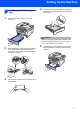
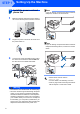
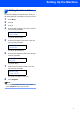
Table Of Contents
- Quick Setup Guide MFC-7840W
- Symbols used in this guide
- Table of Contents
- Getting Started
- STEP 1 Setting Up the Machine
- STEP 2 Installing the Driver & Software
- Supplied CD-ROM ‘MFL-Pro Suite’
- Windows®
- For USB Interface Cable Users (For Windows® 2000 Professional/XP/XP Professional x64 Edition/Windows Vista®)
- For Wired Network Interface Users (For Windows® 2000 Professional/XP/XP Professional x64 Edition/Windows Vista®)
- For Wireless Network Interface Users (For Windows® 2000 Professional/XP/XP Professional x64 Edition/Windows Vista®) in infrastructure mode
- Connecting your wireless machine and wireless network together and installing the printer driver in infrastructure mode
- Using the Setup Wizard from the control panel LAN menu for wireless network configuration
- Using the SecureEasySetup™, Wi-Fi Protected Setup™ or AOSS™ software to configure your machine for a wireless network (one-push method)
- Macintosh®
- For USB Interface Cable Users
- For Wired Network Interface Users
- For Wireless Network Interface Users (For Mac OS® X 10.2.4 or greater) in infrastructure mode
- Connecting your wireless machine and wireless network together and installing the printer driver in infrastructure mode
- Using the Setup Wizard from the control panel LAN menu for wireless network configuration (Infrastructure Mode)
- Using the SecureEasySetup™, Wi-Fi Protected Setup™ or AOSS™ software to configure your machine for a wireless network (one push-mode)
- For Network Users
- Consumables and Options
- brother UK/IRE/SAF

Table of Contents
1
Getting Started
Carton components...................................................................................................................................... 2
Control panel................................................................................................................................................ 3
STEP 1 –
Setting Up the Machine
Installing the drum unit and toner cartridge assembly.................................................................................. 4
Loading paper in the paper tray ................................................................................................................... 5
Install the power cord and phone line .......................................................................................................... 6
Setting the date and time ............................................................................................................................. 7
Setting your station ID.................................................................................................................................. 8
Tone and pulse dialling mode ..................................................................................................................... 9
Selecting a receive mode............................................................................................................................. 9
Setting the phone line type......................................................................................................................... 10
Setting the LCD contrast ............................................................................................................................ 11
STEP 2 –
Installing the Driver & Software
Windows
®
For USB Interface Cable Users
(For Windows
®
2000 Professional/XP/XP Professional x64 Edition/Windows Vista
®
)............................. 14
For Wired Network Interface Users
(For Windows
®
2000 Professional/XP/XP Professional x64 Edition/Windows Vista
®
)............................. 17
For Wireless Network Interface Users (For Windows
®
2000 Professional/XP/XP Professional x64
Edition/Windows Vista
®
) in infrastructure mode ....................................................................................... 20
For Windows Server
®
2003, see the Network User’s Guide on the CD-ROM.
Macintosh
®
For USB Interface Cable Users................................................................................................................. 29
For Mac OS
®
X 10.2.4 or greater......................................................................................................... 29
For Wired Network Interface Users........................................................................................................... 31
For Mac OS
®
X 10.2.4 or greater......................................................................................................... 31
For Wireless Network Interface Users (For Mac OS
®
X 10.2.4 or greater) in infrastructure mode.......... 34
For Network Users
BRAdmin Light utility (For Windows
®
users).............................................................................................. 43
Installing the BRAdmin Light configuration utility .................................................................................. 43
Setting your IP address, Subnet Mask and Gateway using BRAdmin Light ........................................ 43
BRAdmin Light utility (For Mac OS
®
X users)............................................................................................ 44
Setting your IP address, Subnet Mask and Gateway using BRAdmin Light ........................................ 44
Web Based Management (web browser)................................................................................................... 45
Restoring the network settings to factory default ....................................................................................... 45
Print the Network Configuration List........................................................................................................... 45
Entering text............................................................................................................................................... 46
Consumables and Options
Consumables ............................................................................................................................................. 47