
User Manual


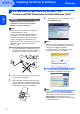
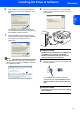


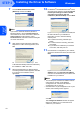
Table Of Contents
- Quick Setup Guide MFC-7840W
- Symbols used in this guide
- Table of Contents
- Getting Started
- STEP 1 Setting Up the Machine
- STEP 2 Installing the Driver & Software
- Supplied CD-ROM ‘MFL-Pro Suite’
- Windows®
- For USB Interface Cable Users (For Windows® 2000 Professional/XP/XP Professional x64 Edition/Windows Vista®)
- For Wired Network Interface Users (For Windows® 2000 Professional/XP/XP Professional x64 Edition/Windows Vista®)
- For Wireless Network Interface Users (For Windows® 2000 Professional/XP/XP Professional x64 Edition/Windows Vista®) in infrastructure mode
- Connecting your wireless machine and wireless network together and installing the printer driver in infrastructure mode
- Using the Setup Wizard from the control panel LAN menu for wireless network configuration
- Using the SecureEasySetup™, Wi-Fi Protected Setup™ or AOSS™ software to configure your machine for a wireless network (one-push method)
- Macintosh®
- For USB Interface Cable Users
- For Wired Network Interface Users
- For Wireless Network Interface Users (For Mac OS® X 10.2.4 or greater) in infrastructure mode
- Connecting your wireless machine and wireless network together and installing the printer driver in infrastructure mode
- Using the Setup Wizard from the control panel LAN menu for wireless network configuration (Infrastructure Mode)
- Using the SecureEasySetup™, Wi-Fi Protected Setup™ or AOSS™ software to configure your machine for a wireless network (one push-mode)
- For Network Users
- Consumables and Options
- brother UK/IRE/SAF

Installing the Driver & Software
17
Windows
®
Windows
®
Wired
Network
2
For Wired Network Interface Users (For Windows
®
2000
Professional/XP/XP Professional x64 Edition/Windows Vista
®
)
Important
Make sure that you have finished the
instructions from step 1 Setting Up the
Machine on pages 4 through 11.
Note
The supplied CD-ROM includes ScanSoft™
PaperPort™ 11SE. This software supports
Windows
®
2000 (SP4 or greater), XP (SP2 or
greater), XP Professional x64 Edition and
Windows Vista
®
only. Please update to the latest
Windows
®
Service Pack before installing
MFL-Pro Suite.
1 Turn off and unplug the machine from the AC
outlet.
2 Connect the network interface cable to the
machine, and then connect it to your network.
3 Plug the AC power cord into an AC outlet. Turn
the power switch on.
4 Turn on your computer. (You must be logged
on with Administrator rights.) Close any
applications running before installing the MFL-
Pro Suite.
Note
Before installation, if you are using personal
firewall software, disable it. After the installation,
restart your personal firewall software.
5 Put the supplied CD-ROM into your CD-ROM
drive. If the model name screen appears,
choose your machine. If the language screen
appears, choose your language.
6 The CD-ROM main menu will appear. Click
Install MFL-Pro Suite.
Note
• If this window does not appear, use Windows
®
Explorer to run the start.exe program from the
root folder of the Brother CD-ROM.
• For Windows Vista
®
, when the User Account
Control screen appears, click Allow.