
User`s guide
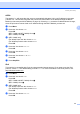
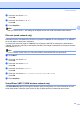


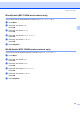
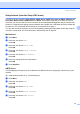

Table Of Contents
- NETWORK USER’S GUIDE MFC-7440N MFC-7840N MFC-7840W
- Table of Contents
- 1 Internet fax
- Overview
- Getting connected
- Control panel key functions
- Sending an Internet fax
- Manually entering text
- Receiving E-mail or Internet fax
- Receiving an Internet fax to your computer
- Forwarding received E-mail and fax messages
- Relay broadcasting
- TX Verification Mail
- Setup Mail TX
- Setup Mail RX
- Error mail
- Important information on Internet fax
- Overview
- 2 Fax operation
- 3 Control panel setup
- LAN menu
- TCP/IP
- Ethernet (wired network only)
- Setup Wizard (MFC-7840W wireless network only)
- SES/WPS/AOSS (MFC-7840W wireless network only)
- WPS w/PIN Code (MFC-7840W wireless network only)
- WLAN Status (MFC-7840W wireless network only)
- Set to Default (MFC-7840W only)
- Wired Enable (MFC-7840W wired network only)
- WLAN Enable (MFC-7840W wireless network only)
- Setup Internet (from the Setup IFAX menu)
- Setup Mail RX (from the Setup IFAX menu)
- Setup Mail TX (from the Setup IFAX menu)
- Setup Relay (from the Setup IFAX menu)
- Scan to E-mail (E-mail server)
- Scan to FTP
- Fax to Server
- Time Zone
- Restoring the network settings to factory default
- Printing the Network Configuration List
- LAN menu
- Appendix A
- Index

Control panel setup
26
3
SES/WPS/AOSS (MFC-7840W wireless network only) 3
If your wireless access point supports either SecureEasySetup™, Wi-Fi Protected Setup™ (PBC
1
) or
AOSS™ (one-push method), you can configure the machine easily without a computer. Your Brother
machine has the SES/WPS/AOSS menu on the control panel. This feature automatically detects which mode
your access point uses, SecureEasySetup™, Wi-Fi Protected Setup™ or AOSS™. By pushing a button on
the wireless LAN router / access point and the machine, you can setup the wireless network and security
settings. See the user’s guide for your wireless LAN router / access point for instructions on how to access
one-push mode. For more information, see the Quick Setup Guide and Network User’s Guide on the CD-
ROM we have provided with the machine.
1
Push Button Configuration
WPS w/PIN Code (MFC-7840W wireless network only) 3
If your wireless access point supports Wi-Fi Protected Setup™ (PIN Method), you can configure the machine
easily without a computer. The PIN (Personal Identification Number) Method is one of the connection
methods developed by the Wi-Fi Alliance. By inputting a PIN which is created by an Enrollee (your machine)
to the Registrar (a device that manages the wireless LAN), you can setup the wireless network and security
settings. See the user’s guide for your wireless LAN router / access point for instructions on how to access
the Wi-Fi Protected Setup™ mode. For more information, see the Network User’s Guide on the CD-ROM we
have provided with the machine.
WLAN Status (MFC-7840W wireless network only) 3
Status 3
This field displays the current wireless network status; Active(11b), Active(11g), Wired LAN Active,
WLAN OFF, AOSS Active or Connection NG / Connection error.
a Press Menu.
b Press a or b to choose LAN.
Press OK.
c Press a or b to choose WLAN.
Press OK.
d Press a or b to choose WLAN Status.
Press OK.
e Press a or b to choose Status.
Press OK.
f The current wireless network status will be displayed; Active(11b), Active(11g), Wired LAN
Active, WLAN OFF, AOSS Active or Connection NG / Connection error.
g Press Stop/Exit.