
User`s guide




Table Of Contents
- NETWORK USER’S GUIDE MFC-7440N MFC-7840N MFC-7840W
- Table of Contents
- 1 Internet fax
- Overview
- Getting connected
- Control panel key functions
- Sending an Internet fax
- Manually entering text
- Receiving E-mail or Internet fax
- Receiving an Internet fax to your computer
- Forwarding received E-mail and fax messages
- Relay broadcasting
- TX Verification Mail
- Setup Mail TX
- Setup Mail RX
- Error mail
- Important information on Internet fax
- Overview
- 2 Fax operation
- 3 Control panel setup
- LAN menu
- TCP/IP
- Ethernet (wired network only)
- Setup Wizard (MFC-7840W wireless network only)
- SES/WPS/AOSS (MFC-7840W wireless network only)
- WPS w/PIN Code (MFC-7840W wireless network only)
- WLAN Status (MFC-7840W wireless network only)
- Set to Default (MFC-7840W only)
- Wired Enable (MFC-7840W wired network only)
- WLAN Enable (MFC-7840W wireless network only)
- Setup Internet (from the Setup IFAX menu)
- Setup Mail RX (from the Setup IFAX menu)
- Setup Mail TX (from the Setup IFAX menu)
- Setup Relay (from the Setup IFAX menu)
- Scan to E-mail (E-mail server)
- Scan to FTP
- Fax to Server
- Time Zone
- Restoring the network settings to factory default
- Printing the Network Configuration List
- LAN menu
- Appendix A
- Index
Fax operation
12
2
g Choose one of the options below:
If you chose Color150dpi, Color300dpi, Color600dpi, Gray100dpi, Gray200dpi or
Gray300dpi in f, choose the file format (PDF or JPEG) that will be used to send your PC.
If you chose B&W200dpi (B/W200dpi) or B&W200x100 (B/W200x100) in f, choose the file format
(TIFF or PDF) that will be used to send to your PC.
Press OK.
h Choose one of the options below:
To store another Speed Dial number go to b.
To finish storing Speed Dial numbers, press Stop/Exit.
Note
When you do a broadcast and you have saved a scan profile along with the number or E-mail address,
the scan profile of the One Touch, Speed Dial or Group number you choose first will be applied to the
broadcast.
Changing one touch and speed dial numbers 2
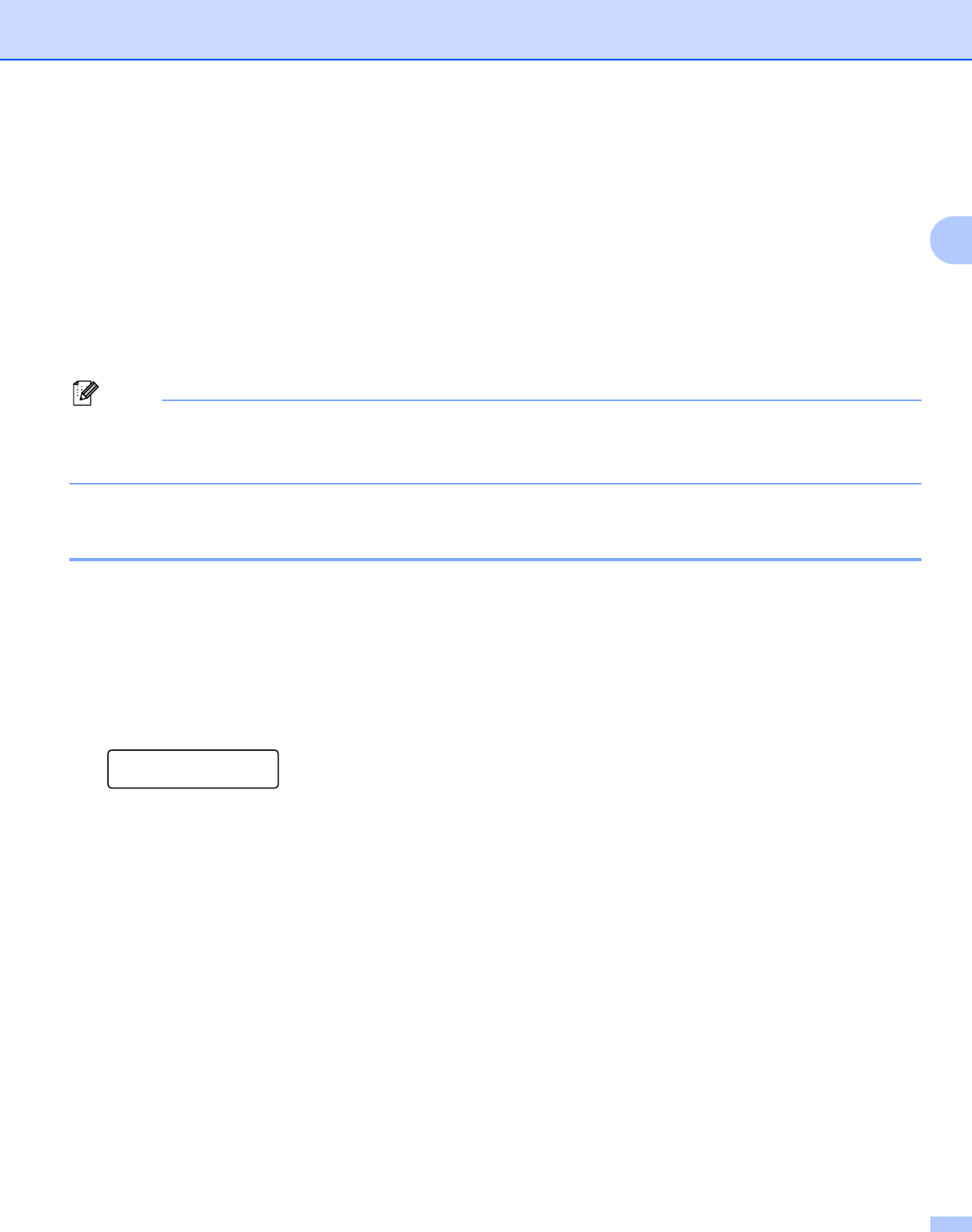
If you try to store a One Touch or Speed Dial number over an existing number, the LCD will show the name
or number already stored there. If your machine has a scheduled job or you have set a fax forwarding number,
the LCD will ask you if you want to change the number.
a Do one of the following:
To change the stored number, press 1.
To exit without making a change, press 2.
#005:MIKE
1.Change 2.Exit
b Press a or b to choose Fax/Tel, E-Mail or IFAX.
Press OK.
c Enter a new number or character.
Press OK.
d Press d or c to position the cursor under the character you want to change, and then press Clear/Back
to delete it. Repeat for each character you want to delete.