Internet Fax and Fax to Server features NETWORK USER’S GUIDE MFC-7440N MFC-7840N MFC-7840W The Brother Solutions Center (http://solutions.brother.com) is your one stop resource for all your printing needs. Download the latest drivers and utilities for your machine, read FAQs and troubleshooting tips or learn about special printing solutions. Note: Not all models are available in all countries.
Definitions of warnings, cautions, and notes We use the following icon throughout this User’s Guide: Notes tell you how you should respond to a situation that may arise or give tips about how the operation works with other features. Trademarks Brother and the Brother logo are registered trademarks and BRAdmin Light and BRAdmin Professional are trademarks of Brother Industries, Ltd. UNIX is a registered trademark of The Open Group. Macintosh is a registered trademark of Apple Inc.
IMPORTANT NOTE This product is approved for use in the country of purchase only. Do not use this product outside the country of purchase as it may violate the wireless telecommunication and power regulations of that country. Windows® XP in this document represents Windows® XP Professional, Windows® XP Professional x64 Edition and Windows® XP Home Edition. Windows® Server 2003 in this document represents Windows® Server 2003 and Windows® Server 2003 x64 Edition.
Brother numbers IMPORTANT For technical and operational assistance, you must call the country where you purchased the machine. Calls must be made from within that country. For Customer Service In USA 1-877-BROTHER (1-877-276-8437) 1-901-379-1215 (fax) In Canada 1-877-BROTHER (514) 685-4898 (fax) In Brazil helpline@brother.com.br In Europe Visit http://www.brother.com for contact information on your local Brother office.
Internet address Brother Global Web Site: http://www.brother.com For Frequently Asked Questions (FAQs), Product Support, Driver Updates and Utilities: http://solutions.brother.com Ordering accessories and supplies In USA: 1-877-552-MALL (1-877-552-6255) 1-800-947-1445 (fax) http://www.brothermall.com In Canada: 1-877-BROTHER http://www.brother.
Table of Contents 1 Internet fax 1 Overview....................................................................................................................................................1 Getting connected ...............................................................................................................................1 Control panel key functions .................................................................................................................2 Sending an Internet fax ..
A Appendix 48 Function table and default factory settings ..............................................................................................48 MFC-7440N and MFC-7840N ...........................................................................................................48 MFC-7840W ......................................................................................................................................52 Entering Text ...........................................................
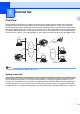
1 Internet fax 1 1 Overview 1 Internet faxing (IFAX) allows you to send and receive fax documents using the Internet as the transport mechanism. Documents are transmitted in E-mail messages as attached TIFF-F files. This means that computers are also able to receive and send documents, providing that the computer has as an application that can generate and view TIFF-F files, you can use any TIFF-F viewer application.
Internet fax Control panel key functions 1 1 Shift + 1 1 Used to change input mode. You can use dial pad keys as Standard alphabet character keys. Dial Pad 1 Used to enter Standard Alpha characters (26 letters), as well as @. space ! “ # % & ’ () + / : ; < > = ? [ ] ^ - $ , l _ and Numbers. d or c 1 Moves the LCD cursor to the left or right when you enter text. OK 1 Used to store multiple numbers. Start 1 Begins transmitting the document.
Internet fax Manually entering text 1 1 Press Shift and 1 simultaneously to change into the “alphabet” dialing mode. You can use the Dial Pad to enter the E-mail address. For more information, see Entering Text on page 58. Please note that also you can connect to the machine using a web browser and store the E-mail address information to a Speed Dial or One Touch location through Web Based Management.
Internet fax Receiving an Internet fax to your computer 1 1 When a computer receives an Internet fax document, the document is attached to a mail message that informs the computer that it has received a document from an Internet fax. This is notified in the subject field of the received mail message.
Internet fax Relay broadcast from a machine 1 1 FAX@brother.com UKFAX@brother.co.uk 123456789 Internet UKFAX@brother.co.uk(fax#123456789) In this example, your machine has an E-mail address of FAX@brother.com, you wish to send a document from this machine to another machine in England with an E-mail address of UKFAX@brother.co.uk, this machine will then forward the document to a standard fax machine using a conventional telephone line. If your E-mail address is FAX@brother.
Internet fax Sending to multiple phone numbers: 1 1 If you want to have the document relayed to more than one standard fax machine the address can be entered using the following method: a b c d Enter the phone number of the first Fax machine UKFAX@brother.co.uk(fax#123). Press OK. Enter the phone number of the second Fax machine UKFAX@brother.co.uk(fax#456). Press Start. Relay broadcast from a computer 1 Your PC UKFAX@brother.co.uk 123456789 Internet UKFAX@brother.co.
Internet fax TX Verification Mail 1 1 Transmission Verification Mail supports two separate functions. Verification Mail for sending allows you to request notification from the receiving station that the Internet Fax or E-mail was received and processed. Verification Mail for receiving allows you to transmit a default report back to the sending station after successfully receiving and processing an Internet Fax or E-mail.
Internet fax Important information on Internet fax 1 Internet fax communication on a LAN system is basically the same as communication via E-mail; however, it is different from fax communication using standard phone lines. The following is important information for using Internet fax: Factors such as the receiver’s location, structure of the LAN system, and how busy the circuit (such as the internet) is, may cause the system to take a long time to send back an error mail. (normally 20 sec. to 30 sec.).
2 Fax operation 2 You can follow instructions in the User’s Guide we have provided with the machine for how to use your machine as a fax after installing the internet fax software. This chapter explains some operations which are unique for the internet fax capable machine. Storing numbers 2 2 You can set up your machine to do the following types of easy dialing: One Touch, Speed-Dial and Groups for Broadcasting faxes.
Fax operation d Choose one of the options below: Enter the number (up to 20 characters) if you chose Fax/Tel. Press OK. 2 Enter the E-mail address (up to 60 characters) if you chose E-Mail or IFAX. Use the chart in Entering Text on page 58 to help you enter letters. Press OK. Note If you chose E-Mail and save the E-mail address, you can only use the E-mail address when you are in Scan mode. If you chose IFAX and save the E-mail address, you can only use the E-mail address when you are in Fax mode.
Fax operation Storing speed dial numbers 2 You can store your frequently used numbers as Speed Dial numbers, so that when you dial you will only have to press a few keys (Search/Speed Dial, the three-digit number and Start). The machine can store 200 Speed Dial numbers (001-200). a Press Menu, 2, 3, 2. Set Quick Dial 2.Speed Dial b Use the dial pad to enter a three-digit Speed Dial location number (001-200). Press OK. c Press a or b to choose Fax/Tel, E-Mail or IFAX. Press OK.
Fax operation g h Choose one of the options below: If you chose Color150dpi, Color300dpi, Color600dpi, Gray100dpi, Gray200dpi or Gray300dpi in f, choose the file format (PDF or JPEG) that will be used to send your PC. If you chose B&W200dpi (B/W200dpi) or B&W200x100 (B/W200x100) in f, choose the file format (TIFF or PDF) that will be used to send to your PC. Press OK. 2 Choose one of the options below: To store another Speed Dial number go to b.
Fax operation Broadcasting 2 Broadcasting lets you send the same fax message to more than one fax number. You can include Groups, One Touch, Speed Dial numbers and up to 50 manually dialed numbers in the same broadcast. You can broadcast up to 258 different numbers. This will depend on how many groups, access codes or credit card numbers you have stored, and on how many delayed or stored faxes are in memory. Note Use the Search/Speed Dial to help you choose numbers easily.
Fax operation Setting up groups for broadcasting 2 If you often want to send the same fax message to many fax numbers you can set up a group. Groups are stored on a One Touch key or a Speed Dial number. Each group uses up a One Touch key or a Speed Dial location. You can then send the fax message to all the numbers stored in a group just by pressing a One Touch key or entering a Speed Dial number, and then pressing Start.
Fax operation h You can save a fax/scan resolution along with the number. Do one of the following: If you chose Fax/IFAX in d, press a or b to choose Std, Fine, S.Fine or Photo. Press OK and then go to j. If you chose E-Mail in d, press a or b to choose Color150dpi, Color300dpi, Color600dpi, Gray100dpi, Gray200dpi, Gray300dpi, B&W200dpi (B/W200dpi) or B&W200x100 (B/W200x100). Press OK and then go to i. Press OK if you don’t want to change the default resolution. Go to j.
3 Control panel setup 3 LAN menu 3 Before using your Brother product in a network environment, you need to configure the correct TCP/IP settings. 3 In this chapter, you will learn how to configure the network settings using the control panel, located on the front of the machine. The LAN menu selections of the control panel allow you to set up the Brother machine for your network configuration. Press Menu, then press a or b to choose LAN. Proceed to the menu selection you wish to configure.
Control panel setup e Press a or b to choose BOOT Method. Press OK. f Press a or b to choose Auto 1, Static 2, RARP 3, BOOTP 4 or DHCP 5. Press OK. If you chose Auto, RARP, BOOTP or DHCP, go to g. 3 If you chose Static, go to h. g Enter how many times the machine tries to obtain the IP address. We recommend you to enter 3 or more. Press OK. h Press Stop/Exit.
Control panel setup Note In order to enable BOOTP, simply use an editor to delete the “#” (if there is no “#”, then BOOTP is already enabled). Then edit the BOOTP configuration file (usually /etc/bootptab) and enter the name, network type (1 for Ethernet), Ethernet address and the IP address, subnet mask and gateway of the print server.
Control panel setup IP Address 3 This field displays the current IP address of the machine. If you have chosen a BOOT Method of Static, enter the IP address that you wish to assign to the machine (check with your network administrator for the IP address to use). If you have chosen a method other than Static, the machine will attempt to determine its IP address using the DHCP or BOOTP protocols.
Control panel setup d Press a or b to choose TCP/IP. Press OK. e Press a or b to choose Subnet Mask. Press OK. f g Press 1 to choose Change. h Press Stop/Exit. 3 Enter the Subnet Mask address. Press OK. Gateway 3 This field displays the current gateway or router address used by the machine. If you are not using DHCP or BOOTP to obtain the gateway or router address, enter the address you wish to assign. If you do not have a gateway or router, leave this field blank.
Control panel setup Node Name 3 You can register the machine name on the Network. This name is often referred to as a NetBIOS name; it will be the name that is registered by the WINS server on your network. Brother recommends the name “BRNxxxxxxxxxxxx” for a wired network or “BRWxxxxxxxxxxxx” for a wireless network. a b Press Menu. 3 Press a or b to choose LAN. Press OK. (MFC-7440N and MFC-7840N) Go to d. (MFC-7840W) Go to c. c (MFC-7840W only) (For Wired) Press a or b to choose Wired.
Control panel setup f Press a or b to choose Auto or Static. Press OK. g Press Stop/Exit. Auto 3 Automatically uses a DHCP request to determine the IP addresses for the primary and secondary WINS servers. You must set the BOOT Method to Auto for this feature to work. 3 Static 3 Uses a specified IP address for the primary and secondary WINS servers. WINS Server 3 Primary WINS Server IP Address 3 This field specifies the IP address of the primary WINS (Windows® Internet Name Service) server.
Control panel setup g h Press 1 to choose Change. i Press Stop/Exit. Enter the WINS Server address. Press OK. DNS Server 3 Primary DNS Server IP Address 3 This field specifies the IP address of the primary DNS (Domain Name System) server. Secondary DNS Server IP Address 3 This field specifies the IP address of the secondary DNS server. It is used as a backup to the Primary DNS server address. If the Primary server is unavailable, the machine will contact the Secondary DNS server.
Control panel setup APIPA 3 The setting of On will cause the print server to automatically allocate a Link-Local IP address in the range (169.254.1.0 - 169.254.254.255) when the print server cannot obtain an IP address through the BOOT Method you have set (see BOOT Method on page 16). Choosing Off means the IP address doesn’t change, when the print server cannot obtain an IP address through the BOOT Method you have set. a b Press Menu. 3 Press a or b to choose LAN. Press OK.
Control panel setup e Press a or b to choose IPv6. Press OK. f Press a or b to choose On or Off. Press OK. g Press Stop/Exit. 3 Note After you choose IPv6 On, this setting will be applied to both the wired and wireless LAN interface. Ethernet (wired network only) 3 Ethernet link mode. Auto allows the print server to operate in 100BASE-TX full or half duplex, or in 10BASE-T full or half duplex mode by auto negotiation.
Control panel setup SES/WPS/AOSS (MFC-7840W wireless network only) 3 If your wireless access point supports either SecureEasySetup™, Wi-Fi Protected Setup™ (PBC 1) or AOSS™ (one-push method), you can configure the machine easily without a computer. Your Brother machine has the SES/WPS/AOSS menu on the control panel. This feature automatically detects which mode your access point uses, SecureEasySetup™, Wi-Fi Protected Setup™ or AOSS™.
Control panel setup Signal 3 This field displays the current wireless network signal strength; Strong, Medium, Weak or None. a b Press Menu. Press a or b to choose LAN. Press OK. c Press a or b to choose WLAN. Press OK. d Press a or b to choose WLAN Status. Press OK. e Press a or b to choose Signal. Press OK. f g The current wireless network signal strength will be displayed; Strong, Medium, Weak or None. 3 Press Stop/Exit. SSID 3 This field displays the current wireless network SSID.
Control panel setup c Press a or b to choose WLAN. Press OK. d Press a or b to choose WLAN Status. Press OK. e Press a or b to choose Comm. Mode. Press OK. f g The current wireless network communication mode will be displayed; Ad-hoc or Infrastructure. 3 Press Stop/Exit. Set to Default (MFC-7840W only) 3 The Set to Default allows you to reset each wired or wireless settings to the default.
Control panel setup Wired Enable (MFC-7840W wired network only) 3 If you want to use the wired network connection, set Wired Enable to On. a b Press Menu. Press a or b to choose LAN. Press OK. c Press a or b to choose Wired. Press OK. d Press a or b to choose Wired Enable. Press OK. e Press a or b to choose On or Off. Press OK. f Press Stop/Exit. WLAN Enable (MFC-7840W wireless network only) 3 3 If you want to use the wireless network connection, set WLAN Enable to On. a b Press Menu.
Control panel setup Setup Internet (from the Setup IFAX menu) 3 This menu has nine selections: Mail Address, SMTP Server, SMTP Port, Auth. for SMTP, POP3 Server, POP3 Port, Mailbox Name, Mailbox Pwd and APOP. As this section requires you to enter a lot of text characters, you may find that it is more convenient to use Web Based Management and your favorite web browser to configure these settings (see the Network User’s Guide on the CD-ROM we have provided with the machine).
Control panel setup f Press a or b to choose Name or IP Address. Press OK. g Enter the SMTP server address (up to 64 characters). Press OK. h Press Stop/Exit. SMTP Port 3 3 This field displays the SMTP port number (for outgoing E-mails) on your network. a b Press Menu. Press a or b to choose LAN. Press OK. c Press a or b to choose Setup IFAX. Press OK. d Press a or b to choose Setup Internet. Press OK. e Press a or b to choose SMTP Port. Press OK. f Enter the SMTP port number. Press OK.
Control panel setup g If you chose None or POP bef.SMTP in f, go to k. If you chose SMTP-AUTH in f, go to h. h Enter the account name for SMTP authentication. Press OK. i Enter the account password for SMTP authentication. Press OK. j Enter the account password again. Press OK. k Press Stop/Exit. POP3 Server 3 3 This field displays the node name or IP address of the POP3 server (incoming E-mail server) used by the Brother machine.
Control panel setup POP3 Port 3 This field displays the POP3 port number (for incoming E-mails) used by the Brother machine. a b Press Menu. Press a or b to choose LAN. Press OK. c Press a or b to choose Setup IFAX. Press OK. d Press a or b to choose Setup Internet. Press OK. e Press a or b to choose POP3 Port. Press OK. f Enter the POP3 port number. Press OK. g Press Stop/Exit.
Control panel setup Mailbox Pwd 3 You can specify the password for the POP3 server account where the internet print jobs are to be retrieved. a b Press Menu. Press a or b to choose LAN. Press OK. 3 c Press a or b to choose Setup IFAX. Press OK. d Press a or b to choose Setup Internet. Press OK. e Press a or b to choose Mailbox Pwd. Press OK. f Enter the user password assigned to the machine that will login to the POP3 server (up to 32 characters).
Control panel setup Setup Mail RX (from the Setup IFAX menu) 3 This menu has five selections: Auto Polling, Poll Frequency, Header, Del Error Mail and Notification. Auto Polling 3 When set to On, the machine automatically checks the POP3 server for new messages. a b 3 Press Menu. Press a or b to choose LAN. Press OK. c Press a or b to choose Setup IFAX. Press OK. d Press a or b to choose Setup Mail RX. Press OK. e Press a or b to choose Auto Polling. Press OK.
Control panel setup Header 3 This selection allows the contents of the mail header to be printed when the received message is printed. a b Press Menu. Press a or b to choose LAN. Press OK. c Press a or b to choose Setup IFAX. Press OK. d Press a or b to choose Setup Mail RX. Press OK. e Press a or b to choose Header. Press OK. f Press a or b to choose All, Subject+From+To or None. Press OK. g Press Stop/Exit.
Control panel setup Notification 3 The notification feature allows a confirmation of receipt message to be transmitted to the sending station when the Internet Fax has been received. This feature only works on Internet Fax machines that support the “MDN” specification. a b Press Menu. 3 Press a or b to choose LAN. Press OK. c Press a or b to choose Setup IFAX. Press OK. d Press a or b to choose Setup Mail RX. Press OK. e Press a or b to choose Notification. Press OK.
Control panel setup g Enter the subject information (up to 40 characters). Press OK. h Press Stop/Exit. Size Limit 3 Some E-mail servers do not allow you to send large E-mail documents (the System Administrator will often place a limit on the maximum E-mail size). With this function enabled, the machine will display Out of Memory when trying to send E-mail documents over 1 Mbyte in size. The document will not be sent and an error report will be printed.
Control panel setup f Press a or b to choose On or Off. Press OK. g Press Stop/Exit. Setup Relay (from the Setup IFAX menu) 3 3 This menu has three selections Rly Broadcast, Relay Domain and Relay Report. For more information on Relay Broadcast, see Relay broadcasting on page 4 of this User’s Guide. Rly Broadcast 3 This function allows the machine to receive a document over the Internet, and then relay it to other fax machines through conventional analog landlines. a b Press Menu.
Control panel setup Relay Domain 3 You can register the Domain Names (Max. 10) that are allowed to request a Relay Broadcast. a b Press Menu. Press a or b to choose LAN. Press OK. c Press a or b to choose Setup IFAX. Press OK. d Press a or b to choose Setup Relay. Press OK. e Press a or b to choose Relay Domain. Press OK. f Press a or b to choose Relay (01 - 10). Press OK. g Enter the Relay Domain name for the Domain that is being allowed to request a Relay Broadcast. Press OK.
Control panel setup Scan to E-mail (E-mail server) 3 You can choose the default color file type for the Scan to E-mail (E-mail server) function. a b Press Menu. Press a or b to choose LAN. Press OK. 3 c Press a or b to choose Scan to E-mail. Press OK. d Press a or b to choose Color 150 dpi, Color 300 dpi, Color 600 dpi, Gray 100 dpi, Gray 200 dpi, Gray 300 dpi, B&W 200 dpi or B&W 200x100 dpi. Press OK.
Control panel setup f Press a or b to choose Change Setting. Press OK. If you don’t have to change the quality, press a or b to choose Enter Address. Press OK and then go to j. g Press a or b to choose Color 150 dpi, Color 300 dpi, Color 600 dpi, Gray 100 dpi, Gray 200 dpi, Gray 300 dpi, B&W 200 dpi or B&W 200x100 dpi. Press OK. If you chose Color 150 dpi, Color 300 dpi, Color 600 dpi, Gray 100 dpi, Gray 200 dpi or Gray 300 dpi, go to h. If you chose B&W 200 dpi or B&W 200x100 dpi, go to i.
Control panel setup Scan to FTP 3 You can choose the default color file type for the Scan to FTP function. a b Press Menu. Press a or b to choose LAN. Press OK. 3 c Press a or b to choose Scan to FTP. Press OK. d Press a or b to choose Color 150 dpi, Color 300 dpi, Color 600 dpi, Gray 100 dpi, Gray 200 dpi, Gray 300 dpi, B&W 200 dpi or B&W 200x100 dpi. Press OK.
Control panel setup Fax to Server 3 The Fax to Server feature allows the machine to scan a document and send it over the network to a separate fax server. The document will then be sent from the server as fax data to the destination fax number over standard phone lines. When the Fax to Server feature is set to On all automatic fax transmissions from the machine will be sent to the fax server for fax transmission.
Control panel setup h Press a or b to choose Suffix. Press OK. i j k Enter the suffix using dial pad. Press OK. Press Stop/Exit. 3 Note You can enter the prefix and suffix address using up to a total of 40 characters. How to operate Fax to Server a b c 3 Place the document in the ADF or on the scanner glass. Enter the fax number. The machine will send the message over a TCP/IP network to the fax server.
Control panel setup Time Zone 3 This field displays your country time zone. The time shown is the time difference between your country and Greenwich Mean Time. For example, the Time Zone for Eastern Time in the USA and Canada is UTC-05:00. a b Press Menu. 3 Press a or b to choose LAN. Press OK. c Press a or b to choose Time Zone. Press OK. d Press a or b to choose the time. Press OK. e Press Stop/Exit.
Control panel setup Restoring the network settings to factory default 3 If you wish to reset the print server back to its default factory settings (resetting all information such as the password and IP address information), please follow these steps: Note This function restores all wired and wireless network settings to the factory default. a b 3 Press Menu. Press a or b to choose LAN. Press OK. c Press a or b to choose Factory Reset. Press OK. d e f Press 1 to choose Reset.
A Appendix A Function table and default factory settings A MFC-7440N and MFC-7840N A The factory settings are shown in Bold with an asterisk. Main menu Submenu Menu selections Options 4.LAN 1.TCP/IP 1.BOOT Method Auto* A Static RARP BOOTP DHCP (If you choose Auto, RARP, BOOTP or DHCP, you will be asked to enter how many times the machine tries to obtain the IP address.) 2.IP Address [000-255].[000-255].[000-255].[000-255] [000].[000].[000].[000]* 1 3.Subnet Mask [000-255].[000-255].
Appendix Main menu Submenu Menu selections Options 4.LAN 1.TCP/IP 9.APIPA On* (continued) (continued) Off 0.IPv6 On Off* 2.Ethernet — Auto* 100B-FD A 100B-HD 10B-FD 10B-HD 3.Setup IFAX 1.Setup Internet 1.Mail Address — 2.SMTP Server Name (Up to 64 characters) IP Address [000-255].[000-255]. [000-255].[000-255] 3.SMTP Port [00001-65535] 4.Auth. for SMTP None* SMTP-AUTH POP bef.SMTP 5.POP3 Server Name (Up to 64 characters) IP Address [000-255].[000-255]. [000-255].[000-255] 6.
Appendix Main menu Submenu Menu selections 4.LAN 3.Setup IFAX 2.Setup Mail RX 4.Del Error Mail On* (continued) Off (continued) Options (continued) 5.Notification On MDN Off* 3.Setup Mail TX 1.Sender Subject 2.Size Limit (Up to 40 characters) A On Off* 3.Notification On Off* 4.Setup Relay 1.Rly Broadcast On Off* 2.Relay Domain RelayXX: 3.Relay Report On Off* 4.
Appendix Main menu Submenu Menu selections Options 4.LAN 6.Fax to Server — — 7.Time Zone — 0.Factory Reset 1.Reset (continued) Off* — UTC+XX:XX UTC-XX:XX 1.Yes 2.No 2.Exit 1 On A — On connection to the network, the machine will automatically set the IP address and Subnet Mask to values appropriate for your network.
Appendix MFC-7840W A The factory settings are shown in Bold with an asterisk. Main Menu Submenu Menu Selections 5.LAN 1.Wired 1.TCP/IP Options 1.BOOT Method Auto* Static RARP A BOOTP DHCP (If you choose Auto, RARP, BOOTP or DHCP, you will be asked to enter how many times the machine tries to obtain the IP address.) 2.IP Address [000-255].[000-255]. [000-255].[000-255] [000].[000].[000].[000]* 1 3.Subnet Mask [000-255].[000-255]. [000-255].[000-255] [000].[000].[000].[000]* 1 4.
Appendix Main Menu Submenu Menu Selections 5.LAN 1.Wired 1.TCP/IP (continued) (continued) (continued) Options 8.DNS Server (Primary) [000-255].[000-255]. [000-255].[000-255] [000].[000].[000].[000]* (Secondary) [000-255].[000-255]. [000-255].[000-255] A [000].[000].[000].[000]* 9.APIPA On* Off 0.IPv6 On Off* 2.Ethernet — Auto* 100B-FD 100B-HD 10B-FD 10B-HD 3.Set to Default 4.Wired Enable 1.Reset — 2.Exit — — On* Off 2.WLAN 1.TCP/IP 1.
Appendix Main Menu Submenu Menu Selections 5.LAN 2.WLAN 1.TCP/IP (continued) (continued) (continued) Options 4.Gateway [000-255].[000-255]. [000-255].[000-255] [000].[000].[000].[000]* 5.Node Name BRWxxxxxxxxxxxx (up to 15 characters) 6.WINS Config Auto* Static 7.WINS Server A (Primary) [000-255].[000-255]. [000-255].[000-255] [000].[000].[000].[000]* (Secondary) [000-255].[000-255]. [000-255].[000-255] [000].[000].[000].[000]* 8.DNS Server (Primary) [000-255].[000-255]. [000-255].
Appendix Main Menu Submenu Menu Selections 5.LAN 2.WLAN 5.WLAN Status (continued) (continued) (continued) Options 2.Signal Strong Medium Weak None 3.SSID — 4.Comm. Mode Ad-hoc A Infrastructure 6.Set to Default 7.WLAN Enable 1.Reset — 2.Exit — — On Off* 3.Setup IFAX 1.Setup Internet 1.Mail Address — 2.SMTP Server Name (Up to 64 characters) IP Address [000-255].[000-255]. [000-255].[000-255] 3.SMTP Port [00001-65535] 4.Auth. for SMTP None* SMTP-AUTH POP bef.SMTP 5.
Appendix Main Menu Submenu Menu Selections 5.LAN 3.Setup IFAX 2.Setup Mail RX (continued) Options 2.Poll Frequency (01Min to 60Min) (continued) (continued) 10Min* 3.Header All Subject+From+To None* 4.Del Error Mail On* Off 5.Notification A On MDN Off* 3.Setup Mail TX 1.Sender Subject (Up to 40 characters) 2.Size Limit On Off* 3.Notification On Off* 4.Setup Relay 1.Rly Broadcast On Off* 2.Relay Domain RelayXX: 3.Relay Report On Off* 4.
Appendix Main Menu Submenu Menu Selections 5.LAN 5.Scan to FTP — (continued) Options Color 150 dpi* (If you choose Color option) Color 300 dpi PDF* Color 600 dpi JPEG Gray 100 dpi (If you choose Gray option) Gray 200 dpi PDF Gray 300 dpi JPEG* B&W 200 dpi B&W 200x100 dpi A (If you choose B&W option) PDF* TIFF 6.Fax to Server — — On Off* 7.Time Zone — — UTC+XX:XX UTC-XX:XX 0.Factory Reset 1.Reset 1.Yes 2.No 2.
Appendix Entering Text A When setting certain menu selections, such as the E-mail address, you will need to type text characters. The dial pad keys have letters printed on them. The keys: 0, # and l do not have printed letters because they are used for special characters.
Appendix Repeating letters A To enter a character on the same key as the previous character, press c to move the cursor right before pressing the key again. Special characters and symbols A Press l, # or 0, and then press d or c to move the cursor to the symbol or character you want. Press OK to choose it. The symbols and characters below will appear depending on your menu selection. Press l for (space) ! “ # $ % & ’ ( ) l + , - .
B Index A Q AOSS ........................................................................ 26 APIPA ....................................................................... 24 Quick dial .................................................................... 9 broadcasting .......................................................... 13 using groups ....................................................... 13 group dial changing .............................................................