
User Manual


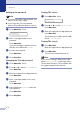
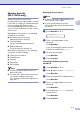


Table Of Contents
- USER’S GUIDE MFC-7420/MFC-7820N
- APPROVAL INFORMATION
- Compilation and Publication Notice
- Safety precautions
- Quick Reference Guide
- Table of Contents
- 1 Introduction
- 2 Getting started
- Initial setup
- General Setup
- Setting the Mode Timer
- Setting the Paper Type
- Setting the Paper Size
- Setting the Ring Volume
- Setting the Beeper Volume
- Setting the Speaker Volume
- Turning on Automatic Daylight Savings Time
- Toner Save
- Sleep Time
- Setting the LCD Contrast
- Security
- TX Lock (MFC-7420 only)
- Memory Security (MFC-7820N only)
- Setting Lock
- 3 Setup Send
- 4 Setup Receive
- 5 Quick-Dial numbers and dialling options
- 6 Remote Fax Options
- 7 Printing reports
- 8 Making copies
- 9 Software and Network Features
- 10 Important information
- 11 Troubleshooting and routine maintenance
- Appendix A
- Telephone Service for Australia
- Telephone Service for New Zealand
- Telephone Service for Some Countries
- Advanced receiving operations
- Connecting an external device to your machine
- Appendix B
- Glossary
- Specifications
- Index
- Remote Retrieval Access card
- brother ARL/ASA/NZ

Chapter 2
2 - 7
Setting up the password
Note
■ If you have already set the password, you
will not need to set it, again.
■ If you forget the TX Lock password,
please call your Brother dealer for service.
1
Press Menu/Set, 1, 8, 1.
2
Enter a four-digit number for the
password.
Press Menu/Set.
If you are entering the password for the
first time, the LCD shows
Verify.
3
Re-enter the password.
Press Menu/Set.
4
Press Stop/Exit.
Changing the TX Lock password
1
Press Menu/Set, 1, 8, 1.
2
Press ▲ or ▼ to select Set Password.
Press Menu/Set.
3
Enter the registered four-digit password.
Press Menu/Set.
4
Enter a four-digit number for the new
password.
Press Menu/Set.
5
If the LCD shows Verify, re-enter the
new password.
Press Menu/Set.
6
Press Stop/Exit.
Turning TX Lock on
1 Press Menu/Set, 1, 8, 1.
2
Press ▲ or ▼ to select Set TX Lock.
Press Menu/Set.
3
Enter the registered four-digit password.
Press Menu/Set.
The machine goes offline and the LCD
shows
TX Lock Mode.
Turning TX Lock off
1
Press Menu/Set.
Enter the registered four-digit password.
2
Press Menu/Set.
TX Lock is automatically turned off.
Note
If you enter the wrong Password, the LCD
shows
Wrong Password and stays offline.
The machine will stay in TX Lock Mode until
the registered password is entered.
Security
1.TX Lock
Security
1.TX Lock