
User Manual


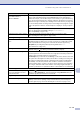


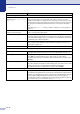
Table Of Contents
- USER’S GUIDE MFC-7420/MFC-7820N
- APPROVAL INFORMATION
- Compilation and Publication Notice
- EC Declaration of Conformity
- Safety precautions
- Quick Reference Guide
- Table of Contents
- 1 Introduction
- 2 Getting started
- Initial setup
- General Setup
- Setting the Mode Timer
- Setting the Paper Type
- Setting the Paper Size
- Setting the Ring Volume
- Setting the Beeper Volume
- Setting the Speaker Volume
- Turning on Automatic Daylight Savings Time
- Toner Save
- Sleep Time
- Setting the LCD Contrast
- Security
- TX Lock (MFC-7420 only)
- Memory Security (MFC-7820N only)
- Setting Lock
- 3 Setup Send
- 4 Setup Receive
- 5 Quick-Dial numbers and dialling options
- 6 Remote Fax Options
- 7 Printing reports
- 8 Making copies
- 9 Software and Network Features
- 10 Important information
- 11 Troubleshooting and routine maintenance
- Appendix A
- Appendix B
- Glossary
- Specifications
- Index
- Remote Retrieval Access card
- brother UK/IRE/SAF

Chapter 11
11 - 13
Printer Difficulties
The machine does not print. Please make sure:
• The machine is plugged in and the power switch is turned On.
—OR—
• The toner cartridge and drum unit are installed properly. (See Replacing the
drum unit (DR-2000) on page 11-28.)
—OR—
• The interface cable is securely connected between the machine and computer.
(See the Quick Setup Guide.)
—OR—
• The correct printer driver has been installed and selected.
—OR—
• Check to see if the LCD is showing an error message. (See Error messages on
page 11-1.)
—OR—
• The machine is online. Click Start and then Printer and Faxes. Right-click
‘Brother MFC-7420 or MFC-7820N’. Make sure that “Use Printer Offline” is
unchecked.
The machine prints unexpectedly
or it prints garbage.
(For MFC-7420)
When you turn off the machine's power switch its memory will be cleared. To
check whether the machine has faxes in its memory see Checking if the machine
has faxes in its memory on page 11-5. If there are faxes you need to save them
before following the suggestions below (See Transferring faxes to your PC on
page 11-5 or Forwarding faxes to another fax machine on page 11-5.)
Turn off the machine's power switch and then on again. If the error message
continues, leave the machine for several minutes and try it again.
(For MFC-7820N)
Turn off the machine's power switch and then on again. If the error message
continues leave the machine for several minutes and then try it again. (The
machine can be turned off for up to 4 days without losing faxes stored in the
memory.)
The machine prints first couple of
pages correctly, then some pages
have text missing.
Your computer is not recognizing the machine’s input buffer full signal. Please
make sure you connect the machine’s cable correctly. (See the Quick Setup
Guide.)
The machine cannot print full pages
of a document.
Out of Memory message occurs.
Reduce the printing resolution. (See Advanced tab in the Software User’s Guide
on the CD-ROM.)
Reduce the complexity of your document and try again. Reduce the graphic quality
or the number of font sizes within your application software.
Turn on the Page Protection function. (See Device Options in the Software User’s
Guide on the CD-ROM.)
My headers or footers appear when
I view my document on the screen
but do not appear when I print
them.
Your machine can print 62 lines per page. The top two lines and bottom two lines
are a restricted area that will not accept print. Adjust the top and bottom margins
in your document to allow for this.
DIFFICULTY SUGGESTIONS