
User Manual

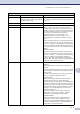

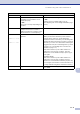
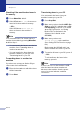
Table Of Contents
- USER’S GUIDE MFC-7420/MFC-7820N
- APPROVAL INFORMATION
- Compilation and Publication Notice
- EC Declaration of Conformity
- Safety precautions
- Quick Reference Guide
- Table of Contents
- 1 Introduction
- 2 Getting started
- Initial setup
- General Setup
- Setting the Mode Timer
- Setting the Paper Type
- Setting the Paper Size
- Setting the Ring Volume
- Setting the Beeper Volume
- Setting the Speaker Volume
- Turning on Automatic Daylight Savings Time
- Toner Save
- Sleep Time
- Setting the LCD Contrast
- Security
- TX Lock (MFC-7420 only)
- Memory Security (MFC-7820N only)
- Setting Lock
- 3 Setup Send
- 4 Setup Receive
- 5 Quick-Dial numbers and dialling options
- 6 Remote Fax Options
- 7 Printing reports
- 8 Making copies
- 9 Software and Network Features
- 10 Important information
- 11 Troubleshooting and routine maintenance
- Appendix A
- Appendix B
- Glossary
- Specifications
- Index
- Remote Retrieval Access card
- brother UK/IRE/SAF

Troubleshooting and routine maintenance
11 - 4
11
Toner Life End The toner cartridge and drum unit
assembly are not installed or is not
installed properly.
—OR—
The toner is used up and printing is not
possible.
Re-install the toner cartridge and drum unit assembly.
—OR—
Replace the toner cartridge with a new one.
(See Replacing the toner cartridge TN-2000 on page
11-25.)
Toner Low If the LCD shows Toner Low, you can
still print, however, the machine is
telling you that toner is near the end of
its life and will soon need replacing.
Order a new toner cartridge now.
Unable to Init.
Unable to Print
Unable to Scan
The machine has a mechanical
problem.
(For MFC-7420)
When you turn off the machine's power switch its
memory will be cleared. To check whether the
machine has faxes in its memory see Checking if the
machine has faxes in its memory on page 11-5. If there
are faxes you need to save them before following the
suggestions below. (See Transferring faxes to your PC
on page 11-5 or Forwarding faxes to another fax
machine on page 11-5.)
Turn off the machine's power switch and then on
again. If the error message continues, leave the
machine for several minutes and try to print, copy or
scan again.
(For MFC-7820N)
Turn off the machine's power switch and then on
again. If the error message continues leave the
machine for several minutes and then try to print, copy
or scan again. (The machine can be turned off for up
to 4 days without losing faxes stored in the memory.)
Wrong Paper Size Paper is not the correct size. Load the correct size of paper (Letter or A4) and then
press Start.
ERROR MESSAGES
ERROR MESSAGE CAUSE ACTION