
User Manual

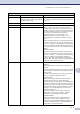

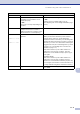
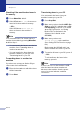
Table Of Contents
- USER’S GUIDE MFC-7420/MFC-7820N
- APPROVAL INFORMATION
- Compilation and Publication Notice
- EC Declaration of Conformity
- Safety precautions
- Quick Reference Guide
- Table of Contents
- 1 Introduction
- 2 Getting started
- Initial setup
- General Setup
- Setting the Mode Timer
- Setting the Paper Type
- Setting the Paper Size
- Setting the Ring Volume
- Setting the Beeper Volume
- Setting the Speaker Volume
- Turning on Automatic Daylight Savings Time
- Toner Save
- Sleep Time
- Setting the LCD Contrast
- Security
- TX Lock (MFC-7420 only)
- Memory Security (MFC-7820N only)
- Setting Lock
- 3 Setup Send
- 4 Setup Receive
- 5 Quick-Dial numbers and dialling options
- 6 Remote Fax Options
- 7 Printing reports
- 8 Making copies
- 9 Software and Network Features
- 10 Important information
- 11 Troubleshooting and routine maintenance
- Appendix A
- Appendix B
- Glossary
- Specifications
- Index
- Remote Retrieval Access card
- brother UK/IRE/SAF

11 - 1
11
Troubleshooting
Error messages
As with any sophisticated office product, errors may occur. If this happens, your machine identifies
the problem and displays an error message. The most common error messages are shown below.
You can correct most problems by yourself. If you need more help, the Brother Solutions Center
offers latest FAQs and troubleshooting tips.
Visit us at http://solutions.brother.com
.
Troubleshooting and routine
maintenance
ERROR MESSAGES
ERROR MESSAGE CAUSE ACTION
Back Cover Open The back cover is not completely
closed.
Close the back cover of the machine.
BT Call Sign On The machine is set BT Call Sign to
On. You cannot change the Receive
Mode from Manual to another mode.
Set BT Call Sign to Off.
See BT Call Sign on page A-1.
Change Drum Soon The drum unit is near the end of its life Use the drum unit until you have a print quality
problem; then replace the drum unit with a new one.
See Replacing the drum unit (DR-2000) on page
11-28.
Comm.Error Poor phone line quality caused a
communication error.
Try sending the fax again or try connecting the
machine to another telephone line. If the problem
continues, call the telephone company and ask them
to check your phone line.
Connection Fail You tried to poll a fax machine that is
not in Polled Waiting mode.
Check the other fax machine’s polling setup.
Cooling Down
Wait for a while
The temperature of the drum unit or
toner cartridge is too hot. The machine
will pause its current print job and go
into cooling down mode. During the
cooling down mode, you will hear the
cooling fan running while the display on
the machine shows Cooling Down,
and Wait for a while.
You must wait 20 minutes for it to cool.
Cover is Open The front cover is not completely
closed.
Close the front cover of the machine.
Data Remaining Print data is left in the machine’s
memory.
Re-start printing from your computer.
Print data is left in the machine’s
memory. The USB or Parallel cable was
unplugged while the computer was
sending the data to the machine.
Press Job Cancel. The machine will cancel the job
and clear it from the memory.
Try to print again.
Disconnected The other person or other person’s fax
machine stopped the call.
Try to send or receive again.