
User Manual


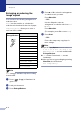
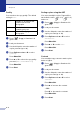
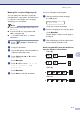

Table Of Contents
- USER’S GUIDE MFC-7420/MFC-7820N
- APPROVAL INFORMATION
- Compilation and Publication Notice
- EC Declaration of Conformity
- Safety precautions
- Quick Reference Guide
- Table of Contents
- 1 Introduction
- 2 Getting started
- Initial setup
- General Setup
- Setting the Mode Timer
- Setting the Paper Type
- Setting the Paper Size
- Setting the Ring Volume
- Setting the Beeper Volume
- Setting the Speaker Volume
- Turning on Automatic Daylight Savings Time
- Toner Save
- Sleep Time
- Setting the LCD Contrast
- Security
- TX Lock (MFC-7420 only)
- Memory Security (MFC-7820N only)
- Setting Lock
- 3 Setup Send
- 4 Setup Receive
- 5 Quick-Dial numbers and dialling options
- 6 Remote Fax Options
- 7 Printing reports
- 8 Making copies
- 9 Software and Network Features
- 10 Important information
- 11 Troubleshooting and routine maintenance
- Appendix A
- Appendix B
- Glossary
- Specifications
- Index
- Remote Retrieval Access card
- brother UK/IRE/SAF

Making copies
8 - 6
8
Making N in 1 copies (Page Layout)
You can reduce the amount of copies by
using the N in 1 copy feature. This allows you
to copy two or four pages onto one page,
allowing you to save paper.
Note
■ Please make sure paper size is set to A4
or
Letter.
■ You can use N in 1 copy feature with
100% copy size only.
■ (P) means Portrait and (L) means
Landscape.
1
Press (Copy) to illuminate it in
green.
2
Load your document.
3
Use the dial pad to enter the number of
copies you want (up to 99).
4
Press Options and ▲ or ▼ to select
Page Layout.
Press Menu/Set.
5
Press ▲ or ▼ to select 2 in 1 (P),
2 in 1 (L), 4 in 1 (P)or
4 in 1 (L).
Press Menu/Set.
6
Press Start to scan the document.
If you are using the scanner glass:
7
After the machine scans the page,
the LCD shows:
Press 1 to scan the next page.
8
Set the next page on the scanner glass.
Press Menu/Set.
Repeat Steps 7 and 8 for each page of
the layout.
9
After all the pages of the document have
been scanned, press 2 to end.
When using the ADF, place document face
up in the direction shown below.
2 in 1 (P)
4 in 1 (P)
Next Page?
1.Yes 2.No
2 in 1 (L)
4 in 1 (L)