
User Manual

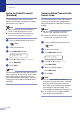

Table Of Contents
- USER’S GUIDE MFC-7420/MFC-7820N
- APPROVAL INFORMATION
- Compilation and Publication Notice
- EC Declaration of Conformity
- Safety precautions
- Quick Reference Guide
- Table of Contents
- 1 Introduction
- 2 Getting started
- Initial setup
- General Setup
- Setting the Mode Timer
- Setting the Paper Type
- Setting the Paper Size
- Setting the Ring Volume
- Setting the Beeper Volume
- Setting the Speaker Volume
- Turning on Automatic Daylight Savings Time
- Toner Save
- Sleep Time
- Setting the LCD Contrast
- Security
- TX Lock (MFC-7420 only)
- Memory Security (MFC-7820N only)
- Setting Lock
- 3 Setup Send
- 4 Setup Receive
- 5 Quick-Dial numbers and dialling options
- 6 Remote Fax Options
- 7 Printing reports
- 8 Making copies
- 9 Software and Network Features
- 10 Important information
- 11 Troubleshooting and routine maintenance
- Appendix A
- Appendix B
- Glossary
- Specifications
- Index
- Remote Retrieval Access card
- brother UK/IRE/SAF

Setup Send
3 - 10
3
Cover page for the next fax only
If you have not yet set your Station ID this
feature will not work. Make sure you have
programmed the Station ID before
continuing. (See Setting the Station ID on
page 2-2.) If you only want to send a Cover
Page with a particular fax, your machine will
ask you to enter the number of pages you are
sending so it can be printed on the Cover
Page.
1
If it is not illuminated in green, press
(Fax).
2
Load your document.
3
Press Menu/Set, 2, 2, 7.
4
Press ▲ or ▼ to select Next Fax:On
(or
Next Fax:Off).
Press Menu/Set.
5
Press ▲ or ▼ to select one of the
standard or your own comments.
Press Menu/Set.
6
Enter two digits to show the number of
pages you are sending.
Press Menu/Set.
(For example, press 0, 2 for 2 pages or
enter 0 0 to leave the number of pages
blank. If you make a mistake, press
to back up and re-enter the number of
pages.)
Send a cover page for all faxes
If you have not yet set your Station ID this
feature will not work. Make sure you have
programmed the Station ID before
continuing. (See Setting the Station ID on
page 2-2.)
You can set the machine to send a cover
page whenever you send a fax. The number
of pages in your fax is not included when you
use this setting.
1
If it is not illuminated in green, press
(Fax).
2
Press Menu/Set, 2, 2, 7.
3
Press ▲ or ▼ to select
On
(or Off).
Press Menu/Set.
4
If you selected On, press ▲ or ▼ to
select one of the standard or your own
comments.
Press Menu/Set.
Setup Send
7.Coverpg Setup
▲
Setup Send
7.Coverpg Setup