
User Manual

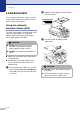

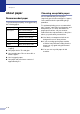


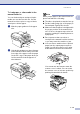


Table Of Contents
- USER’S GUIDE MFC-7420/MFC-7820N
- APPROVAL INFORMATION
- Compilation and Publication Notice
- EC Declaration of Conformity
- Safety precautions
- Quick Reference Guide
- Table of Contents
- 1 Introduction
- 2 Getting started
- Initial setup
- General Setup
- Setting the Mode Timer
- Setting the Paper Type
- Setting the Paper Size
- Setting the Ring Volume
- Setting the Beeper Volume
- Setting the Speaker Volume
- Turning on Automatic Daylight Savings Time
- Toner Save
- Sleep Time
- Setting the LCD Contrast
- Security
- TX Lock (MFC-7420 only)
- Memory Security (MFC-7820N only)
- Setting Lock
- 3 Setup Send
- 4 Setup Receive
- 5 Quick-Dial numbers and dialling options
- 6 Remote Fax Options
- 7 Printing reports
- 8 Making copies
- 9 Software and Network Features
- 10 Important information
- 11 Troubleshooting and routine maintenance
- Appendix A
- Appendix B
- Glossary
- Specifications
- Index
- Remote Retrieval Access card
- brother UK/IRE/SAF

Chapter 1
1 - 11
How to load paper
To load paper or other media in the
paper tray
1
Pull the paper tray completely out of the
machine.
2
While pressing the paper guide release
lever, slide the adjusters to fit the paper
size.
Check that the guides are firmly in the
slots.
3
Fan the stack of paper well to avoid
paper jams and mis-feeds.
4
Put paper in the paper tray.
5
Put the paper tray firmly back in the
machine and unfold the output paper
tray support flap before you use the
machine.
Note
When you put paper in the paper tray, please
remember the following:
■ Check that the paper is flat in the tray and
below the maximum paper mark, and that
the paper guides are touching the sides of
the paper stack.
■ The side to be printed on must be face
down.
Maximum paper mark
Output Paper
Tray Support
Flap