
User Manual

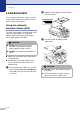



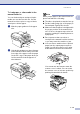


Table Of Contents
- USER’S GUIDE MFC-7420/MFC-7820N
- APPROVAL INFORMATION
- Compilation and Publication Notice
- EC Declaration of Conformity
- Safety precautions
- Quick Reference Guide
- Table of Contents
- 1 Introduction
- 2 Getting started
- Initial setup
- General Setup
- Setting the Mode Timer
- Setting the Paper Type
- Setting the Paper Size
- Setting the Ring Volume
- Setting the Beeper Volume
- Setting the Speaker Volume
- Turning on Automatic Daylight Savings Time
- Toner Save
- Sleep Time
- Setting the LCD Contrast
- Security
- TX Lock (MFC-7420 only)
- Memory Security (MFC-7820N only)
- Setting Lock
- 3 Setup Send
- 4 Setup Receive
- 5 Quick-Dial numbers and dialling options
- 6 Remote Fax Options
- 7 Printing reports
- 8 Making copies
- 9 Software and Network Features
- 10 Important information
- 11 Troubleshooting and routine maintenance
- Appendix A
- Appendix B
- Glossary
- Specifications
- Index
- Remote Retrieval Access card
- brother UK/IRE/SAF

Chapter 1
1 - 7
Load document
You can send a fax, make copies, and scan
from the ADF (automatic document feeder)
and from the scanner glass.
Using the automatic
document feeder (ADF)
The ADF can hold up to 35 pages and feeds
each sheet individually. Use standard
80 g/m
2
paper and always fan the pages
before putting them in the ADF.
■ Make sure documents written with ink are
completely dry.
■ Documents to be faxed must be from
147.3 to 215.9 mm wide and 147.3 to
356 mm long.
1
Fan the pages well. Make sure you put
the documents face up, top edge first
in the ADF until you feel them touch the
feed roller.
2
Adjust the paper guides to fit the width of
your documents.
3
Unfold the ADF document output
support flap.
CAUTION
■
DO NOT use paper that is curled,
wrinkled, folded, ripped, stapled,
paper-clipped, pasted or taped.
■
DO NOT use cardboard, newspaper or
fabric.
CAUTION
■
DO NOT pull on the document while it
is feeding.
■ Thick documents left on the scanner
glass may cause the ADF to jam.