
User`s guide


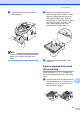
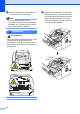

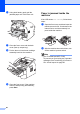

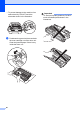
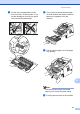

Table Of Contents
- Basic User’s Guide FAX-2840/FAX-2950/MFC-7240/MFC-7290
- User’s Guides and where do I find them?
- Download optional software from the Brother Solutions Center (FAX-2840 users only)
- Table of Contents
- 1 General information
- 2 Loading paper
- 3 Loading documents
- 4 Sending a fax
- 5 Receiving a fax
- 6 Using PC-FAX (For FAX-2950, MFC-7240 and MFC-7290)
- 7 Telephone and external devices
- Voice operations
- Telephone line services
- Telephone Service for Australia
- Telephone Service for New Zealand
- Telephone Service for Some Countries
- Connecting an external TAD
- External and extension telephones
- 8 Dialling and storing numbers
- 9 Making copies
- 10 How to print from a computer (For FAX-2950, MFC-7240 and MFC-7290)
- 11 How to scan to a computer (For FAX-2950, MFC-7240 and MFC-7290)
- A Routine maintenance
- B Troubleshooting
- C Menu and features
- D Specifications
- Index

88
f Using both hands, gently pull the
jammed paper out of the fuser unit.
g Close the fuser cover and the back
cover (face-up output tray).
h Put the drum unit and toner cartridge
assembly back into the machine.
i Close the front cover. If the machine
does not start printing automatically,
press Start.
Paper is jammed inside the
machine B
If the LCD shows Jam Inside, follow these
steps:
a Open the front cover, and then leave the
machine turned on for 10 minutes for the
internal fan to cool the extremely hot
parts inside the machine.
b After the machine has cooled down, turn
off the machine’s power switch.
Note
(For FAX-2840 and MFC-7240)
To prevent you from losing any important
messages, see Transferring your faxes or
Fax Journal report uu page 83.