
User`s guide
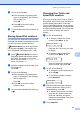
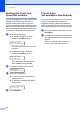
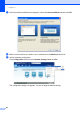
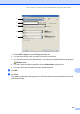
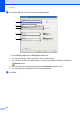
Table Of Contents
- Basic User’s Guide FAX-2840/FAX-2950/MFC-7240/MFC-7290
- User’s Guides and where do I find them?
- Download optional software from the Brother Solutions Center (FAX-2840 users only)
- Table of Contents
- 1 General information
- 2 Loading paper
- 3 Loading documents
- 4 Sending a fax
- 5 Receiving a fax
- 6 Using PC-FAX (For FAX-2950, MFC-7240 and MFC-7290)
- 7 Telephone and external devices
- Voice operations
- Telephone line services
- Telephone Service for Australia
- Telephone Service for New Zealand
- Telephone Service for Some Countries
- Connecting an external TAD
- External and extension telephones
- 8 Dialling and storing numbers
- 9 Making copies
- 10 How to print from a computer (For FAX-2950, MFC-7240 and MFC-7290)
- 11 How to scan to a computer (For FAX-2950, MFC-7240 and MFC-7290)
- A Routine maintenance
- B Troubleshooting
- C Menu and features
- D Specifications
- Index

How to scan to a computer (For FAX-2950, MFC-7240 and MFC-7290)
51
11
How to change the SCAN key settings for PDF
scanning 11
You can change your machine’s SCAN key settings using ControlCenter4 Windows
®
.
a Open ControlCenter4 by clicking Start/All Programs/Brother/XXX-XXXX (where XXX-
XXXX is your model name)/ControlCenter4. The ControlCenter4 application will open.
b Make sure the machine you want to use is selected from the Model pull-down list.
c Click the Device Settings tab.
d Click Device Scan Settings.