
User`s guide
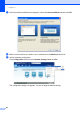
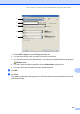
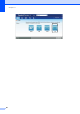
Table Of Contents
- Basic User’s Guide FAX-2840/FAX-2950/MFC-7240/MFC-7290
- User’s Guides and where do I find them?
- Download optional software from the Brother Solutions Center (FAX-2840 users only)
- Table of Contents
- 1 General information
- 2 Loading paper
- 3 Loading documents
- 4 Sending a fax
- 5 Receiving a fax
- 6 Using PC-FAX (For FAX-2950, MFC-7240 and MFC-7290)
- 7 Telephone and external devices
- Voice operations
- Telephone line services
- Telephone Service for Australia
- Telephone Service for New Zealand
- Telephone Service for Some Countries
- Connecting an external TAD
- External and extension telephones
- 8 Dialling and storing numbers
- 9 Making copies
- 10 How to print from a computer (For FAX-2950, MFC-7240 and MFC-7290)
- 11 How to scan to a computer (For FAX-2950, MFC-7240 and MFC-7290)
- A Routine maintenance
- B Troubleshooting
- C Menu and features
- D Specifications
- Index

47
11
11
Before scanning 11
To use the machine as a scanner, install a scanner driver.
Install the scanner drivers from the CD-ROM. (See Quick Setup Guide: Install MFL-Pro Suite.)
Scanning a document as a PDF file using
ControlCenter4 (Windows
®
) 11
(For detailed information, See Software User’s Guide: Scanning.)
Note
The screens on your PC may vary depending on your model.
ControlCenter4 is a software utility that lets you quickly and easily access the applications you use
most often. Using ControlCenter4 eliminates the need to manually launch specific applications.
You can use ControlCenter4 on your computer.
a Load your document. (See How to load documents uu page 23.)
b Open ControlCenter4 by clicking Start/All Programs/Brother/XXX-XXXX (where XXX-
XXXX is your model name)/ControlCenter4. The ControlCenter4 application will open.
How to scan to a computer
(For FAX-2950, MFC-7240 and
MFC-7290)
11