
User`s guide
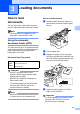
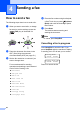
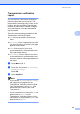

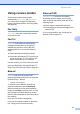
Table Of Contents
- Basic User’s Guide FAX-2840/FAX-2950/MFC-7240/MFC-7290
- User’s Guides and where do I find them?
- Download optional software from the Brother Solutions Center (FAX-2840 users only)
- Table of Contents
- 1 General information
- 2 Loading paper
- 3 Loading documents
- 4 Sending a fax
- 5 Receiving a fax
- 6 Using PC-FAX (For FAX-2950, MFC-7240 and MFC-7290)
- 7 Telephone and external devices
- Voice operations
- Telephone line services
- Telephone Service for Australia
- Telephone Service for New Zealand
- Telephone Service for Some Countries
- Connecting an external TAD
- External and extension telephones
- 8 Dialling and storing numbers
- 9 Making copies
- 10 How to print from a computer (For FAX-2950, MFC-7240 and MFC-7290)
- 11 How to scan to a computer (For FAX-2950, MFC-7240 and MFC-7290)
- A Routine maintenance
- B Troubleshooting
- C Menu and features
- D Specifications
- Index

24
4
How to send a fax 4
The following steps show how to send a fax.
a When you want to send a fax, or change
fax send or receive settings, press the
(FAX) key to illuminate it in
green.
b Place the document face down in the
ADF. (See Using the automatic
document feeder (ADF) uu page 23.)
c Set the fax resolution or contrast if you
want to change them.
For more advanced fax sending
operations and settings, see Advanced
User’s Guide: Sending a fax.
Broadcast
Delayed Fax
Batch TX
Real Time TX
Polled TX
Overseas Mode
Fax Resolution
Contrast
Coverpg Setup
Coverpage Note
d Enter the fax number using the dial pad,
a One Touch key or press (Address
Book) and enter the three-digit Speed
Dial number.
e Press Start.
The machine starts scanning and
sending the document.
Note
To cancel, press Stop/Exit.
Cancelling a fax in progress 4
Press Stop/Exit to cancel the fax. If you
press Stop/Exit while the machine is dialling
or sending, the LCD will ask you to confirm.
Dialing #XXX
1.Clear 2.Exit
Sending #XXX P01
1.Clear 2.Exit
Press 1 to cancel the fax.
Sending a fax 4