
User`s guide


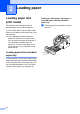
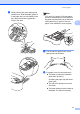
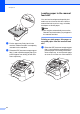
Table Of Contents
- Basic User’s Guide FAX-2840/FAX-2950/MFC-7240/MFC-7290
- User’s Guides and where do I find them?
- Download optional software from the Brother Solutions Center (FAX-2840 users only)
- Table of Contents
- 1 General information
- 2 Loading paper
- 3 Loading documents
- 4 Sending a fax
- 5 Receiving a fax
- 6 Using PC-FAX (For FAX-2950, MFC-7240 and MFC-7290)
- 7 Telephone and external devices
- Voice operations
- Telephone line services
- Telephone Service for Australia
- Telephone Service for New Zealand
- Telephone Service for Some Countries
- Connecting an external TAD
- External and extension telephones
- 8 Dialling and storing numbers
- 9 Making copies
- 10 How to print from a computer (For FAX-2950, MFC-7240 and MFC-7290)
- 11 How to scan to a computer (For FAX-2950, MFC-7240 and MFC-7290)
- A Routine maintenance
- B Troubleshooting
- C Menu and features
- D Specifications
- Index

10
2
Loading paper and
print media
2
The machine can feed paper from the
standard paper tray or manual feed slot.
(For FAX-2950, MFC-7240 and MFC-7290)
When you put paper into the paper tray, note
the following:
If your application software supports
paper size selection on the print menu,
you can select it through the software. If
your application software does not
support it, you can set the paper size in
the printer driver or by using the control
panel buttons.
Loading paper in the standard
paper tray 2
You can load up to 250 sheets. Paper can be
loaded up to the maximum paper mark (b b b)
on the right-hand side of the paper tray. (For
the recommended paper to use, see Paper
capacity of the paper trays uu page 18.)
Printing on plain paper, thin paper or
recycled paper from the standard
paper tray
2
a Pull the paper tray completely out of the
machine.
Loading paper 2