
User`s guide




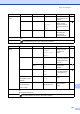
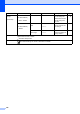
Table Of Contents
- Basic User’s Guide FAX-2840/FAX-2950/MFC-7240/MFC-7290
- User’s Guides and where do I find them?
- Download optional software from the Brother Solutions Center (FAX-2840 users only)
- Table of Contents
- 1 General information
- 2 Loading paper
- 3 Loading documents
- 4 Sending a fax
- 5 Receiving a fax
- 6 Using PC-FAX (For FAX-2950, MFC-7240 and MFC-7290)
- 7 Telephone and external devices
- Voice operations
- Telephone line services
- Telephone Service for Australia
- Telephone Service for New Zealand
- Telephone Service for Some Countries
- Connecting an external TAD
- External and extension telephones
- 8 Dialling and storing numbers
- 9 Making copies
- 10 How to print from a computer (For FAX-2950, MFC-7240 and MFC-7290)
- 11 How to scan to a computer (For FAX-2950, MFC-7240 and MFC-7290)
- A Routine maintenance
- B Troubleshooting
- C Menu and features
- D Specifications
- Index

Menu and features
121
C
Level 1 Level 2 Level 3 Options Descriptions Page
5.Machine
Info.
1.Serial No. — — You can check the
serial number of your
machine.
110
2.Page Counter — Total
Fax/List
Copy
Print
You can check the
number of total
pages the machine
has printed during its
life.
See .
3.Drum Life — — You can check the
percentage of a
Drum life that
remains available.
See Advanced User’s Guide.
The default settings are shown in Bold with an asterisk.
Level 1 Level 2 Level 3 Options Descriptions Page
0.Initial
Setup
1.Receive Mode — Fax Only*
Fax/Tel
External TAD
Manual
You can choose the
receive mode that
best suits your
needs.
26
2.Date&Time 1.Date&Time — Puts the date and
time on the LCD and
in headings of faxes
you send.
See .
2.Daylight
Save
On
Off
Changes for Daylight
Savings Time
manually.
See .
3.Station ID — Fax:
Tel:
Name:
Sets your name and
fax number to appear
on each page you
fax.
See .
4.Tone/Pulse
(not available in New
Zealand)
— Tone*
Pulse
Chooses the dialling
mode.
4.Dial Tone
(for New Zealand)
5.Dial Tone
— Detection
No Detection*
You can shorten the
dial tone detect
pause.
100
See Advanced User’s Guide.
See Quick Setup Guide.
The default settings are shown in Bold with an asterisk.