
User`s guide
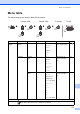
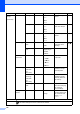


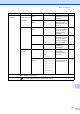
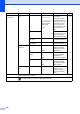


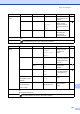
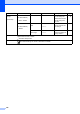
Table Of Contents
- Basic User’s Guide FAX-2840/FAX-2950/MFC-7240/MFC-7290
- User’s Guides and where do I find them?
- Download optional software from the Brother Solutions Center (FAX-2840 users only)
- Table of Contents
- 1 General information
- 2 Loading paper
- 3 Loading documents
- 4 Sending a fax
- 5 Receiving a fax
- 6 Using PC-FAX (For FAX-2950, MFC-7240 and MFC-7290)
- 7 Telephone and external devices
- Voice operations
- Telephone line services
- Telephone Service for Australia
- Telephone Service for New Zealand
- Telephone Service for Some Countries
- Connecting an external TAD
- External and extension telephones
- 8 Dialling and storing numbers
- 9 Making copies
- 10 How to print from a computer (For FAX-2950, MFC-7240 and MFC-7290)
- 11 How to scan to a computer (For FAX-2950, MFC-7240 and MFC-7290)
- A Routine maintenance
- B Troubleshooting
- C Menu and features
- D Specifications
- Index

116
2.Fax
(Continued)
1.Setup
Receive
(In Fax mode only)
(Continued)
8.Polling RX
(FAX-2840 and
MFC-7240)
7.Polling RX
(FAX-2950 and
MFC-7290)
Standard*
Secure
Timer
Sets up your machine
to poll another fax
machine.
See .
9.Fax Rx Stamp
(FAX-2840 and
MFC-7240)
8.Fax Rx Stamp
(FAX-2950 and
MFC-7290)
On
Off*
Prints the received
time and date on the
top of the received
faxes.
2.Setup Send
(In Fax mode only)
1.Contrast Auto*
Light
Dark
Changes the
lightness or darkness
of faxes you send.
2.Fax
Resolution
Standard*
Fine
S.Fine
Photo
Sets the default
resolution for
outgoing faxes.
3.Delayed Fax Set Time=00:00 Sets the time of day in
24 hour format that
the delayed faxes will
be sent.
4.Batch TX On
Off*
Combines delayed
faxes going to the
same fax number at
the same time of day
into one transmission.
5.Real Time TX Next Fax:On
Next Fax:Off
On
Off*
Sends a fax without
using the memory.
6.Polled TX Standard*
Secure
Sets up your machine
with a document to be
retrieved by another
fax machine.
7.Coverpg
Setup
Next Fax:On
Next Fax:Off
On
Off*
Print Sample
Automatically sends a
cover page you have
programmed.
Level 1 Level 2 Level 3 Options Descriptions Page
See Advanced User’s Guide.
The default settings are shown in Bold with an asterisk.