
User`s guide


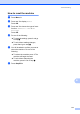

Table Of Contents
- Basic User’s Guide FAX-2840/FAX-2950/MFC-7240/MFC-7290
- User’s Guides and where do I find them?
- Download optional software from the Brother Solutions Center (FAX-2840 users only)
- Table of Contents
- 1 General information
- 2 Loading paper
- 3 Loading documents
- 4 Sending a fax
- 5 Receiving a fax
- 6 Using PC-FAX (For FAX-2950, MFC-7240 and MFC-7290)
- 7 Telephone and external devices
- Voice operations
- Telephone line services
- Telephone Service for Australia
- Telephone Service for New Zealand
- Telephone Service for Some Countries
- Connecting an external TAD
- External and extension telephones
- 8 Dialling and storing numbers
- 9 Making copies
- 10 How to print from a computer (For FAX-2950, MFC-7240 and MFC-7290)
- 11 How to scan to a computer (For FAX-2950, MFC-7240 and MFC-7290)
- A Routine maintenance
- B Troubleshooting
- C Menu and features
- D Specifications
- Index

110
Machine Information B
Checking the Serial Number B
You can see the machine’s Serial Number on
the LCD.
a Press Menu, 5, 1.
b The machine will display the machine’s
Serial Number on the LCD.
c Press Stop/Exit.
Reset functions B
The following reset functions are available:
1 Address & Fax
Address & Fax resets the following
settings:
Address Book
(One Touch Dial/Speed Dial/Setup
Groups)
Programmed fax jobs in the memory
(Polled TX, Delayed Fax)
Station ID
(name and numbers)
Coverpage Note
(comments)
Remote Fax Options
(Remote Access Code, Fax Storage,
Fax Forwarding and PC-FAX
1
)
Report settings
(Transmission Verification Report/
Tel Index List/Fax Journal)
Setting Lock password
1
For FAX-2950, MFC-7240 and MFC-7290
2 All Settings
You can reset all the machine’s settings
back to the factory default.
Brother strongly recommends you
perform this operation when you dispose
of the machine.
Note
Unplug the interface cable before you
choose All Settings.