
User`s guide

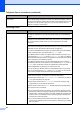

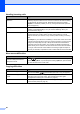
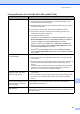
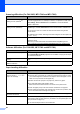
Table Of Contents
- Basic User’s Guide FAX-2840/FAX-2950/MFC-7240/MFC-7290
- User’s Guides and where do I find them?
- Download optional software from the Brother Solutions Center (FAX-2840 users only)
- Table of Contents
- 1 General information
- 2 Loading paper
- 3 Loading documents
- 4 Sending a fax
- 5 Receiving a fax
- 6 Using PC-FAX (For FAX-2950, MFC-7240 and MFC-7290)
- 7 Telephone and external devices
- Voice operations
- Telephone line services
- Telephone Service for Australia
- Telephone Service for New Zealand
- Telephone Service for Some Countries
- Connecting an external TAD
- External and extension telephones
- 8 Dialling and storing numbers
- 9 Making copies
- 10 How to print from a computer (For FAX-2950, MFC-7240 and MFC-7290)
- 11 How to scan to a computer (For FAX-2950, MFC-7240 and MFC-7290)
- A Routine maintenance
- B Troubleshooting
- C Menu and features
- D Specifications
- Index

Troubleshooting
93
B
If you are having difficulty with your machine B
Important
• If you think there is a problem with your machine, check the chart below and follow the
troubleshooting tips. You can solve most problems by yourself.
• If you need additional help, the Brother Solutions Center offers the latest FAQs and
troubleshooting tips.
Visit us at http://solutions.brother.com/
.
• If you think there is a problem with the way your faxes look, make a copy first. If the copy looks
good, the problem may not be your machine. Check the chart below and follow the
troubleshooting tips.
• Using non-Brother supplies may affect the print quality, hardware performance, and machine
reliability.
Printing received faxes
Difficulties Suggestions
Condensed print
Horizontal streaks
Top and bottom sentences are
cut off
Missing lines
Usually this is caused by a poor telephone connection. If your copy looks good,
you probably had a bad connection, with static or interference on the telephone
line. Ask the other party to send the fax again.
Poor print quality See Improving the print quality uu page 101.
Vertical black lines when receiving The corona wire for printing may be dirty. Clean the corona wire on the drum unit.
(See Cleaning the corona wire uu page 67.)
The sender’s scanner may be dirty. Ask the sender to make a copy to see if the
problem is with the sending machine. Try receiving from another fax machine.
If the problem continues, call your dealer for service.
Received faxes appear as split or
blank pages.
If the received faxes are divided and printed on two pages or if you get an extra
blank page, your paper size setting may not be correct for the paper you are using.
(See Paper Size uu page 17.)
Turn on Auto Reduction. (See Advanced User’s Guide: Printing a reduced
incoming fax.)
Telephone line or connections
Difficulties Suggestions
Dialling does not work. Check for a dial tone.
(Not available in New Zealand) Change the Tone/Pulse setting. (See Quick
Setup Guide.)
Check all line cord connections.
Check that the machine is plugged in and switched on.
Send a manual fax by pressing Hook/Hold and dialing the number. Wait to hear
fax receiving tones before pressing Start.