
User Manual
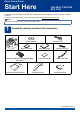
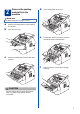


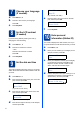
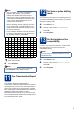

Table Of Contents
- Quick Setup Guide FAX-2890/FAX-2990/MFC-7290
- Start Here
- 1 Unpack the machine and check the components
- 2 Remove the packing material from the machine
- 3 Attach the ADF Document Output Support
- 4 Install the Handset
- 5 Load paper in the paper tray
- 6 Connect the power cord and telephone line
- 7 Choose your language (If needed)
- 8 Set the LCD contrast (if needed)
- 9 Set the date and time
- 10 Enter personal information (Station ID)
- 11 Fax Transmission Report
- 12 Set tone or pulse dialling mode
- 13 Set the telephone line compatibility
- 14 Dial Prefix
- 15 Choose your Operating System
- For Windows® Users (Windows® XP/XP Professional x64 Edition/Windows Vista®/Windows® 7)
- For Macintosh Users (Mac OS X 10.5.8 - 10.7.x)
- Other Information
- Consumables
- Start Here

9
e Press Stop/Exit.
11
Fax Transmission Report
Your Brother machine is equipped with a
Transmission Verification Report that can be used as
confirmation that you sent a fax. This report lists the
name or fax number of the receiving party, the date,
time, and duration of the transmission, the number of
pages transmitted, and whether or not the
transmission was successful. If you want to use the
Fax Transmission Report feature see Printing reports
in the Advanced User’s Guide.
12
Set tone or pulse dialling
mode
Your machine comes set for a Tone dialling service. If
you have a Pulse dialling service (rotary), you need to
change the dialling mode.
a Press Menu, 0, 3.
b Press a or b to choose Pulse (or Tone).
Press OK.
c Press Stop/Exit.
13
Set the telephone line
compatibility
If you are connecting the machine to a VoIP service
(over the Internet) you need to change the
compatibility setting.
a Press Menu, 2, 0, 1.
b Press a or b to choose Basic(for VoIP).
Press OK.
c Press Stop/Exit.
Note
• You can register your name in Chinese or
English in this machine, you can switch
between the alphabet input mode and the
Chinese-entry mode by pressing a button, the
current input mode will appear in the lower right
corner of LCD. Simplified Chinese can be
converted from Pinyin entry.
• See the following chart for entering your name.
• If you need to enter a character that is on the
same key as the last character, press c to move
the cursor to the right.
• If you entered a character incorrectly and want
to change it, press d or c to move the cursor to
the incorrect character, press Clear.
Press
key
One
time
Two
times
Three
times
Four
times
Five
times
Six
times
Seven
times
Eight
times
Nine
times
2 abcABC2ab
3 de fDEF3de
4 gh iGHI4gh
5 jklJKL5jk
6 mn oMNO6mn
7 pqr sPQRS7
8 tuvTUV8tu
9 wxyzWXYZ9
For more details, see Entering text in the
Basic User’s Guide.
Note
If you make a mistake and want to start again,
press Stop/Exit and go back to step a.
Note
If you are using an analogue telephone line you
can skip this step.