
User Manual


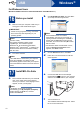
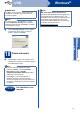
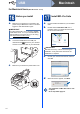

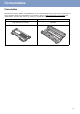

Table Of Contents
- Quick Setup Guide FAX-2890/FAX-2990/MFC-7290
- Start Here
- 1 Unpack the machine and check the components
- 2 Remove the packing material from the machine
- 3 Attach the ADF Document Output Support
- 4 Install the Handset
- 5 Load paper in the paper tray
- 6 Connect the power cord and telephone line
- 7 Choose your language (If needed)
- 8 Set the LCD contrast (if needed)
- 9 Set the date and time
- 10 Enter personal information (Station ID)
- 11 Fax Transmission Report
- 12 Set tone or pulse dialling mode
- 13 Set the telephone line compatibility
- 14 Dial Prefix
- 15 Choose your Operating System
- For Windows® Users (Windows® XP/XP Professional x64 Edition/Windows Vista®/Windows® 7)
- For Macintosh Users (Mac OS X 10.5.8 - 10.7.x)
- Other Information
- Consumables
- Start Here

12
Windows
®
USB
For Windows
®
Users
(Windows
®
XP/XP Professional x64 Edition/Windows Vista
®
/Windows
®
7)
16
Before you install
a Make sure that your computer is ON and you
are logged on with Administrator rights.
b Turn off the machine.
17
Install MFL-Pro Suite
a Put the installer CD-ROM into your CD-ROM
drive. If the model name screen appears,
choose your machine. If the language screen
appears, choose your language.
b Click Install MFL-Pro Suite, and click Yes if
you accept the license agreements.
c Choose Standard and then click Next.
d Follow the on-screen instructions until this
screen appears.
e Connect the USB cable to the USB port
marked with the symbol on your machine
and then connect the cable to your computer.
f Turn the machine on.
The installation will automatically start. Follow
the on-screen instructions.
IMPORTANT
• If there are any programs running, close them.
• The screens may differ depending on your
operating system.
Note
(For MFC-7290)
The installer CD-ROM includes Presto!
PageManager. This software supports
Windows
®
XP, XP Professional x64 Edition,
Windows Vista
®
and Windows
®
7. Update to the
latest Windows
®
Service Pack before installing
MFL-Pro Suite.
Note
If the USB cable is connected to your computer
before the installation, the dialog box will
automatically appear to inform that your computer
found new hardware. Please cancel it to close the
screen.
Note
If the Brother screen does not appear
automatically, go to My Computer (Computer),
double-click the CD-ROM icon, and then
double-click start.exe.
Note
• If the installation does not continue
automatically, open the top menu again by
ejecting and then reinserting the CD-ROM or
double-click the start.exe program from the
root folder, and continue from step b to install
MFL-Pro Suite.
• For Windows Vista
®
and Windows
®
7 users,
when the User Account Control screen
appears, click Allow or Yes.