
User Manual


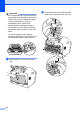

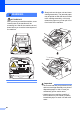


Table Of Contents
- Basic User’s Guide FAX-2840/FAX-2950
- User’s Guides and where do I find them?
- Download optional software from the Brother Solutions Center (FAX-2840 users only)
- Table of Contents
- 1 General information
- 2 Loading paper
- 3 Loading documents
- 4 Sending a fax
- 5 Receiving a fax
- 6 Using PC-FAX (For FAX-2950)
- 7 Telephone and external devices
- 8 Dialling and storing numbers
- 9 Making copies
- 10 How to print from a computer (For FAX-2950)
- 11 How to scan to a computer (For FAX-2950)
- A Routine maintenance
- B Troubleshooting
- C Menu and features
- D Specifications
- Index

Troubleshooting
83
B
Document Jams B
Document was not inserted or
fed properly, or was too long B
a Open the control panel cover.
b Carefully pull the jammed document
toward the front of the machine.
c Close the control panel cover.
d Press Stop/Exit.
Paper Jams B
Always remove all paper from the paper tray
and straighten the stack when you add new
paper. This helps prevent multiple sheets of
paper from feeding through the machine at
the same time and prevents paper jams.
Paper is jammed in the
standard paper tray B
If the LCD shows Jam Tray, follow these
steps:
a Pull the paper tray completely out of the
machine.