
User Manual

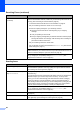


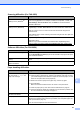

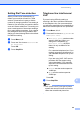
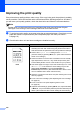

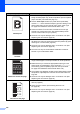
Table Of Contents
- Basic User’s Guide FAX-2840/FAX-2950
- User’s Guides and where do I find them?
- Download optional software from the Brother Solutions Center (FAX-2840 users only)
- Table of Contents
- 1 General information
- 2 Loading paper
- 3 Loading documents
- 4 Sending a fax
- 5 Receiving a fax
- 6 Using PC-FAX (For FAX-2950)
- 7 Telephone and external devices
- 8 Dialling and storing numbers
- 9 Making copies
- 10 How to print from a computer (For FAX-2950)
- 11 How to scan to a computer (For FAX-2950)
- A Routine maintenance
- B Troubleshooting
- C Menu and features
- D Specifications
- Index

102
Hollow print
Make sure that you use paper that meets our specifications.
Rough-surfaced paper may cause the problem. (See Acceptable
paper and other print media uu page 19.)
Choose Thick Paper mode in the printer driver (FAX-2950),
choose Thick in the machine
’s Paper Type menu setting or use
thinner paper than you are currently using. (See Paper Type
uu page 19 and Software User’s Guide: Basic Tab.)
Check the machine
’s environment. Conditions such as high
humidity can cause hollow print. (See Product Safety Guide:
Choose a safe location for your product.)
The drum unit may be damaged. Put in a new drum unit. (See
Replacing the drum unit uu page 59.)
All black
Clean the corona wire inside the drum unit by sliding the green
tab. Be sure to return the green tab to the home position (a). (See
Cleaning the corona wire uu page 66.)
The drum unit may be damaged. Put in a new drum unit. (See
Replacing the drum unit uu page 59.)
The fuser unit may be contaminated. Call Brother Customer
Service or your local Brother dealer.
White lines across the page
Make sure that you use paper that meets our specifications. A
rough surfaced paper or thick print media can cause problems.
Make sure that you choose the appropriate media type in the
printer driver (for FAX-2950) or in the machine’s Paper Type
menu setting. (See Acceptable paper and other print media
uu page 19 and Software User’s Guide: Basic Tab.)
The problem may disappear by itself. Print multiple pages to clear
this problem, especially if the machine has not been used for a
long time.
The drum unit may be damaged. Put in a new drum unit. (See
Replacing the drum unit uu page 59.)
Lines across the page
Clean the corona wire of the drum unit. (See Cleaning the corona
wire uu page 66.)
Clean the drum surface. (See Cleaning the drum unit
uu page 68.)
The drum unit may be damaged. Put in a new drum unit. (See
Replacing the drum unit uu page 59.)
Examples of poor print quality Recommendation
ABCDEFGH
abcdefghijk
ABCD
abcde
01234
ABCDEFGH
abcdefghijk
ABCD
abcde
01234