Quick Setup Guide Start Here MFC-7240 Thank you for choosing Brother, your support is important to us and we value your business. Your Brother product is engineered and manufactured to the highest standards to deliver reliable performance, day-in and day-out. Please read the Product Safety Guide first, then read this Quick Setup Guide for the correct setup and installation procedure. To view the Quick Setup Guide in other languages, please visit http://solutions.brother.com/.
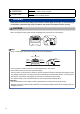
WARNING WARNING indicates a potentially hazardous situation which, if not avoided, could result in death or serious injuries. CAUTION CAUTION indicates a potentially hazardous situation which, if not avoided, may result in minor or moderate injuries. WARNING Plastic bags are used in the packing of your machine. Plastic bags are not toys. To avoid the danger of suffocation, keep these bags away from babies and children and dispose of them correctly.
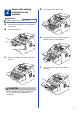
2 Remove the packing material from the machine d Lift the elastic band off the drum. IMPORTANT DO NOT connect the AC power cord yet. a b Remove the packing tape from the outside of the machine. Open the front cover. e c Pull the paper strip to remove the protective material as shown in the illustration. Remove the Silica Pack from the inside of the machine. f Take out the drum unit and toner cartridge assembly. CAUTION CAUTION DO NOT eat the silica gel pack. Please throw away.
g 3 Gently shake it from side to side several times to distribute the toner evenly inside the assembly. a h Attach the ADF Document Output Support Unfold the ADF Document Support. Put the drum unit and toner cartridge assembly back in the machine. b Open the control panel cover by lifting it toward the back. Control Panel Cover i 4 Close the front cover of the machine.
c Attach the ADF Document Output Support. a d a Close the control panel cover. 4 Install the Handset b 5 Load paper in the paper tray Pull the paper tray completely out of the machine. While pressing the green paper-guide release lever a, slide the paper guides to fit the paper size you are loading in the tray. Make sure that the guides are firmly in the slots. Connect the curled handset cord to the machine and the other end to the handset.
e Note For Legal or Folio size paper, press the release button a in the bottom of the paper tray and then pull out the back of the paper tray. Put the paper tray firmly back in the machine. Make sure that it is completely inserted into the machine. (Legal or Folio size paper are not available in some regions.) 1 c d Unfold the support flap a to prevent paper from sliding off the face-down output tray. Fan the stack of paper well to avoid paper jams and misfeeds.
6 Connect the power cord and telephone line IMPORTANT DO NOT connect the interface cable yet. a b Connect the AC power cord to the machine, and then plug it into an AC power outlet. Turn the machine’s power switch on. WARNING The machine must be grounded using a 3-prong plug.
Note If you are sharing one telephone line with an external telephone answering machine, connect it as shown below. Before you connect the external telephone answering machine, remove the protective cap c from the EXT. jack on the machine. a b 7 Choose your language (if needed) Press Menu, 0, 0. Press a or b to choose your language. Press OK.
8 Choose the correct Receive Mode The correct Receive Mode is determined by the external devices and telephone subscriber services (Voice Mail, Distinctive Ring, etc.) you have (or will be using) on the same line as the Brother machine. Will you be using a Distinctive Ring number for receiving faxes? Brother uses the term “Distinctive Ring” but telephone companies may have other names for this service such as Custom Ringing, RingMaster, Personalized Ring, Teen Ring, Ident-A-Call, and Smart Ring.
9 Set the LCD contrast (if needed) 11 If you are having difficulty reading the LCD, try changing the contrast setting. The machine displays the date and time, and if you set up the Station ID, it will add it to each fax you send. a b a b Press Menu, 1, 5. Press c to increase the contrast. Press Menu, 0, 3. Enter your fax number (up to 20 digits) on the dial pad, and then press OK. —OR— Press d to decrease the contrast. Station ID Fax: Press OK. c Press Stop/Exit.
Note If you make a mistake and want to start again, press Stop/Exit and go back to step a.
16 Automatic Daylight Saving Time You can set the machine to change automatically for Daylight Saving Time. It will reset itself forward one hour in the Spring and backward one hour in the Fall. a b 17 a Send in the Product Registration and Test Sheet (USA only) Fill out the Product Registration and Test Sheet. Press Menu, 0, 2, 2. Press a or b to choose On (or Off). Press OK. c Press Stop/Exit. b c d e Place the sheet face down in the Automatic Document Feeder. Make sure Green.
18 Choose your Operating System These installation instructions are for Windows® XP Home/Windows® XP Professional, Windows® XP Professional x64 Edition, Windows Vista®, Windows® 7, and Mac OS X (versions 10.5.8, 10.6.x, 10.7.x). Note • You can visit us at http://solutions.brother.com/ where you can get product support, the latest driver updates and utilities, and answers to frequently asked questions (FAQs) and technical questions. • For Linux®, visit your model page at http://solutions.brother.com/.
USB Windows® For Windows® Users (Windows® XP/XP Professional x64 Edition/Windows Vista®/Windows® 7) 19 a Before you install Make sure that your computer is ON and you are logged on with Administrator rights. 20 a IMPORTANT • If there are any programs running, close them. • The screens may differ depending on your operating system. Note The installer CD-ROM includes Nuance™ PaperPort™ 12SE.
USB e Connect the USB cable to the USB port marked with the symbol on your machine and then connect the cable to your computer. Windows® Note • If an error message appears during the software installation, run the Installation Diagnostics located in Start/All Programs/Brother/MFC-XXXX (where MFCXXXX is your model name). • Depending on your security settings, a Windows® Security or antivirus software window may appear when using the machine or its software. Please allow or permit the window to continue.
USB Macintosh For Macintosh Users (Mac OS X 10.5.8 - 10.7.x) 19 a Before you install Make sure your machine is connected to the power and your Macintosh is ON. You must be logged on with Administrator rights. IMPORTANT 20 a b For users of Mac OS X 10.5.7 or lower, upgrade to Mac OS X 10.5.8 - 10.7.x. (For the latest drivers and information for the Mac OS X you are using, visit http://solutions.brother.com/.) b Install MFL-Pro Suite Put the installer CD-ROM into your CD-ROM drive.
USB 21 Macintosh Download and install Presto! PageManager When Presto! PageManager is installed OCR capability is added to Brother ControlCenter2. You can easily scan, share and organize photos and documents using Presto! PageManager. a On the Brother Support screen, click Presto! PageManager and follow the on-screen instructions. Macintosh 17 Windows® The installation is now complete.
Other Information Brother CreativeCenter Get inspired. If you’re using Windows®, double-click the Brother CreativeCenter icon on your desktop to access our FREE web site with many ideas and resources for personal and professional use. This icon appears after installing MFL-Pro Suite or the optional software available from the Brother Solutions Center. Mac users can access Brother CreativeCenter at this web address: http://www.brother.
Consumables Consumables When the time comes to replace consumable items, an error will be indicated by the LCD on the control panel. For more information about the consumables for your machine, visit us at http://www.brother.com/original/ or contact your local Brother reseller.
Trademarks The Brother logo is a registered trademark of Brother Industries, Ltd. Brother is a registered trademark of Brother Industries, Ltd. Microsoft and Windows are registered trademarks of Microsoft Corporation in the United States and/or other countries. Windows Vista is either a registered trademark or trademark of Microsoft Corporation in the United States and/or other countries. Apple, Macintosh, and Mac OS are trademarks of Apple Inc., registered in the U.S. and other countries.