
User Manual

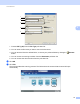

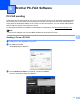


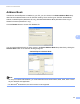
Table Of Contents
- Software User’s Guide
- Applicable models
- Definitions of notes
- Compilation and publication notice
- IMPORTANT NOTE
- Table of Contents
- Section I: Machine operation keys
- Section II: Windows®
- 2 Printing
- 3 Scanning
- Scanning a document using the TWAIN driver
- Scanning a document using the WIA driver
- Scanning a document using the WIA driver (Windows Photo Gallery and Windows Fax and Scan)
- Using Nuance™ PaperPort™ 12SE
- 4 ControlCenter4
- 5 Remote Setup
- 6 Brother PC-FAX Software
- Section III: Apple Macintosh
- 7 Printing and Faxing
- 8 Scanning
- 9 ControlCenter2
- 10 Remote Setup
- Section IV: Using the Scan key
- Index

Brother PC-FAX Software
80
6
d Enter a fax number using any of the following methods:
Use the dial pad to enter the number.
Click the Address Book button, and then choose a member or group from the Address Book.
If you make a mistake, click All Clear to delete all the entries.
e To include a cover page, check Add Cover Page.
Note
You can click the icon to edit a cover page.
f Click Start to send the fax.
Note
• If you want to cancel the fax, click Cancel.
• If you want to redial a number, click Redial to scroll through the last five fax numbers, choose a number,
and then click Start.
Setting up user information 6
Note
You can access User Information from the PC-FAX sending dialog box by clicking the icon.
(See Sending a file as a PC-FAX uu page 79.)
a Click the Start button, All Programs, Brother, MFC-XXXX, PC-FAX Sending, then PC-FAX Setup.
The PC-FAX Setup dialog box appears:
b Enter this information to create the fax header and cover page.