
User Manual

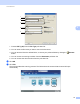
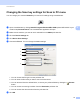



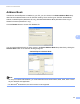
Table Of Contents
- Software User’s Guide
- Applicable models
- Definitions of notes
- Compilation and publication notice
- IMPORTANT NOTE
- Table of Contents
- Section I: Machine operation keys
- Section II: Windows®
- 2 Printing
- 3 Scanning
- Scanning a document using the TWAIN driver
- Scanning a document using the WIA driver
- Scanning a document using the WIA driver (Windows Photo Gallery and Windows Fax and Scan)
- Using Nuance™ PaperPort™ 12SE
- 4 ControlCenter4
- 5 Remote Setup
- 6 Brother PC-FAX Software
- Section III: Apple Macintosh
- 7 Printing and Faxing
- 8 Scanning
- 9 ControlCenter2
- 10 Remote Setup
- Section IV: Using the Scan key
- Index

ControlCenter4
76
4
Changing the Scan key settings for Scan to PC menu 4
You can change your machine’s SCAN key for Scan to PC settings using ControlCenter4.
a Open ControlCenter4 by clicking Start/All Programs/Brother/MFC-XXXX (where MFC-XXXX is your
model name)/ControlCenter4. The ControlCenter4 application will open.
b Make sure the machine you want to use is selected from the Model pull-down list.
c Click the Device Settings tab.
d Click Device Scan Settings.
e Choose the File tab. You can change the default settings.
1 You can choose the file type from the pull-down list.
2 You can enter the file name you want to use for the document.
3 You can save the file to the default folder, or choose your preferred folder by clicking the Browse
button.
4 You can choose a scanning resolution from the Resolution pull-down list.
5 You can choose the document size from the pull-down list.
f Click OK.
1
2
4
5
3