
User Manual


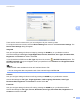


Table Of Contents
- Software User’s Guide
- Applicable models
- Definitions of notes
- Compilation and publication notice
- IMPORTANT NOTE
- Table of Contents
- Section I: Machine operation keys
- Section II: Windows®
- 2 Printing
- 3 Scanning
- Scanning a document using the TWAIN driver
- Scanning a document using the WIA driver
- Scanning a document using the WIA driver (Windows Photo Gallery and Windows Fax and Scan)
- Using Nuance™ PaperPort™ 12SE
- 4 ControlCenter4
- 5 Remote Setup
- 6 Brother PC-FAX Software
- Section III: Apple Macintosh
- 7 Printing and Faxing
- 8 Scanning
- 9 ControlCenter2
- 10 Remote Setup
- Section IV: Using the Scan key
- Index

ControlCenter4
71
4
Support tab 4
This section briefly introduces the Support tab function. For more details of each function, click the (Help)
button in ControlCenter4.
Opening ControlCenter Help 4
The (ControlCenter Help) lets you open the Help file for detailed information about ControlCenter.
a Select the Support tab.
b Click (ControlCenter Help).
c The ControlCenter Help top page will appear.
Using Brother Solutions Center 4
The (Brother Solutions Center) button lets you open the Brother Solutions Center website offering
information about your Brother product including FAQs (Frequently Asked Questions), User’s Guides, driver
updates and tips for using your machine.
a Select the Support tab.
b Click (Brother Solutions Center).
c The Brother Solutions Center website will be shown in your web browser.
Accessing the Brother CreativeCenter 4
The (Brother CreativeCenter) button lets you access our website for free and easy online solutions for
business and home users.
a Select the Support tab.
b Click (Brother CreativeCenter). ControlCenter4 will launch your web browser and then open the
Brother CreativeCenter website.