
User Manual
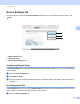

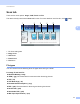

Table Of Contents
- Software User’s Guide
- Applicable models
- Definitions of notes
- Compilation and publication notice
- IMPORTANT NOTE
- Table of Contents
- Section I: Machine operation keys
- Section II: Windows®
- 2 Printing
- 3 Scanning
- Scanning a document using the TWAIN driver
- Scanning a document using the WIA driver
- Scanning a document using the WIA driver (Windows Photo Gallery and Windows Fax and Scan)
- Using Nuance™ PaperPort™ 12SE
- 4 ControlCenter4
- 5 Remote Setup
- 6 Brother PC-FAX Software
- Section III: Apple Macintosh
- 7 Printing and Faxing
- 8 Scanning
- 9 ControlCenter2
- 10 Remote Setup
- Section IV: Using the Scan key
- Index

ControlCenter4
56
4
b Click Quick-Dial.
c The Address Book window will appear. For Address Book configuration, see Remote Setup uu page 77.
Configuring Scan key settings 4
The Device Scan Settings button lets you configure your machine’s SCAN key settings.
There are four scan functions which you can configure to fit your scanning needs.
To configure each scan function, select the Device Settings tab and then click Device Scan Settings. The
Device Scan Settings dialog will appear.
Image tab
4
Lets you configure settings for Scan to Image by pressing the SCAN key on your Brother machine.
Choose the settings for File Type, Target Application, File size, Resolution, Scan Type, Document Size,
Brightness and Contrast as needed. Click OK.
If you choose Secure PDF from the File Type drop-down list, click the (Set PDF Password) button. The
Set PDF Password dialog box will appear. Enter your password in the Password and Re-type Password
boxes and then click OK.
Note
• Secure PDF is also available for Scan to E-mail and Scan to File.
• You can change the data compression ratio of the scanned image with File size.