
User Manual
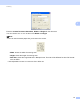



Table Of Contents
- Software User’s Guide
- Applicable models
- Definitions of notes
- Compilation and publication notice
- IMPORTANT NOTE
- Table of Contents
- Section I: Machine operation keys
- Section II: Windows®
- 2 Printing
- 3 Scanning
- Scanning a document using the TWAIN driver
- Scanning a document using the WIA driver
- Scanning a document using the WIA driver (Windows Photo Gallery and Windows Fax and Scan)
- Using Nuance™ PaperPort™ 12SE
- 4 ControlCenter4
- 5 Remote Setup
- 6 Brother PC-FAX Software
- Section III: Apple Macintosh
- 7 Printing and Faxing
- 8 Scanning
- 9 ControlCenter2
- 10 Remote Setup
- Section IV: Using the Scan key
- Index

Scanning
40
3
Scanning a document using the WIA driver
(Windows Photo Gallery and Windows Fax and Scan) 3
Scanning a document into the PC 3
You can use the ADF (automatic document feeder) to scan a whole page.
a Load your document.
b Open your software application to scan the document.
c Do one of the following:
(Windows Photo Gallery)
Click File, then Import from Camera or Scanner.
(Windows Fax and Scan)
Click File, New, then Scan.
d Choose the scanner you want to use.
e Click Import or OK.
The Scan dialog box appears.
f If necessary, adjust the following settings in the Scan dialog box:
Scanner (1)
Profile (2)
Source (3)
Paper size (4)
Color format (5)
File type (6)
Resolution (DPI) (7)
Brightness (8)
Contrast (9)
Scanning area (10)
Scan (11)