
User Manual
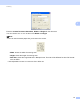


Table Of Contents
- Software User’s Guide
- Applicable models
- Definitions of notes
- Compilation and publication notice
- IMPORTANT NOTE
- Table of Contents
- Section I: Machine operation keys
- Section II: Windows®
- 2 Printing
- 3 Scanning
- Scanning a document using the TWAIN driver
- Scanning a document using the WIA driver
- Scanning a document using the WIA driver (Windows Photo Gallery and Windows Fax and Scan)
- Using Nuance™ PaperPort™ 12SE
- 4 ControlCenter4
- 5 Remote Setup
- 6 Brother PC-FAX Software
- Section III: Apple Macintosh
- 7 Printing and Faxing
- 8 Scanning
- 9 ControlCenter2
- 10 Remote Setup
- Section IV: Using the Scan key
- Index

Scanning
34
3
Brightness 3
Adjust the setting (-50 to 50) to get the best image. The default value is 0, representing an average.
You can set the Brightness level by dragging the slider to the right or left to lighten or darken the image. You
can also enter a value in the box to set the level.
If the scanned image is too light, set a lower Brightness level and scan the document again. If the image is
too dark, set a higher Brightness level and scan the document again.
Contrast 3
You can increase or decrease the Contrast level by moving the slider to the left or right. An increase
emphasizes dark and light areas of the image, while a decrease reveals more detail in grey areas. You can
also enter a value in the box to set the Contrast.
Note
The Contrast setting is only available when Grey (Error Diffusion) or True Grey is chosen.
When scanning photographs or other images for use in a word processor or other graphics application, try
different settings for the contrast and resolution to see which setting best suits your needs.
Document Size 3
Choose one of the following sizes:
A4 210 x 297 mm (8.3 x 11.7 in)
JIS B5 182 x 257 mm (7.2 x 10.1 in)
JIS B6 128 x 182 mm (5 x 7.2 in)
Letter 215.9 x 279.4 mm (8 1/2 x 11 in)
Legal 215.9 x 355.6 mm (8 1/2 x 14 in)
A5 148 x 210 mm (5.8 x 8.3 in)
A6 105 x 148 mm (4.1 x 5.8 in)
Executive 184.1 x 266.7 mm (7 1/4 x 10 1/2 in)
10x15cm(4x6in)
13x20cm(5x8in)
9x13cm(3.5x5in)
13x18cm(5x7in)
Postcard1100x148mm(3.9x5.8in)
Postcard 2 (Double) 148 x 200 mm (5.8 x 7.9 in)
Custom
If you choose Custom as the size, the Custom Document Size dialog box appears.