
User Manual




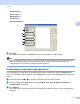

Table Of Contents
- Software User’s Guide
- Applicable models
- Definitions of notes
- Compilation and publication notice
- IMPORTANT NOTE
- Table of Contents
- Section I: Machine operation keys
- Section II: Windows®
- 2 Printing
- 3 Scanning
- Scanning a document using the TWAIN driver
- Scanning a document using the WIA driver
- Scanning a document using the WIA driver (Windows Photo Gallery and Windows Fax and Scan)
- Using Nuance™ PaperPort™ 12SE
- 4 ControlCenter4
- 5 Remote Setup
- 6 Brother PC-FAX Software
- Section III: Apple Macintosh
- 7 Printing and Faxing
- 8 Scanning
- 9 ControlCenter2
- 10 Remote Setup
- Section IV: Using the Scan key
- Index

Printing
27
2
Serial No. (5)
By clicking Auto Detect (6), the printer driver will query the machine and display its serial number. If it fails
to receive the information, the screen will display “---------------”.
Auto Detect (6)
The Auto Detect function obtains the machine’s serial number by initiating communication between the
PC and the machine.
Note
The Auto Detect function is not available under the following machine conditions:
• The machine’s power switch is Off.
• The cable is not connected to the machine correctly.