
User Manual
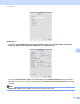
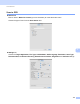
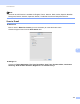
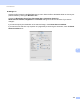
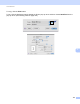
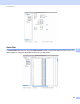
Table Of Contents
- Software User’s Guide
- Applicable models
- Definitions of notes
- Compilation and publication notice
- IMPORTANT NOTE
- Table of Contents
- Section I: Machine operation keys
- Section II: Windows®
- 2 Printing
- 3 Scanning
- Scanning a document using the TWAIN driver
- Scanning a document using the WIA driver
- Scanning a document using the WIA driver (Windows Photo Gallery and Windows Fax and Scan)
- Using Nuance™ PaperPort™ 12SE
- 4 ControlCenter4
- 5 Remote Setup
- 6 Brother PC-FAX Software
- Section III: Apple Macintosh
- 7 Printing and Faxing
- 8 Scanning
- 9 ControlCenter2
- 10 Remote Setup
- Section IV: Using the Scan key
- Index

ControlCenter2
138
9
Settings tab
Choose the file format from the File Type pop-up menu. Save the file to the default folder or choose your
preferred folder by clicking the Browse button.
Choose the Resolution, Scan Type, Document Size, Continuous Scanning,
Show Scanner Interface, Brightness and Contrast settings and enter the file name if you want to
change it.
If you want to specify the destination of the scanned image, check Show Save As window.
If you want to scan and then crop a portion of a page after pre-scanning the document, check the Show
Scanner Interface box.