
User Manual
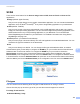
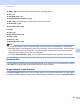
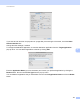
Table Of Contents
- Software User’s Guide
- Applicable models
- Definitions of notes
- Compilation and publication notice
- IMPORTANT NOTE
- Table of Contents
- Section I: Machine operation keys
- Section II: Windows®
- 2 Printing
- 3 Scanning
- Scanning a document using the TWAIN driver
- Scanning a document using the WIA driver
- Scanning a document using the WIA driver (Windows Photo Gallery and Windows Fax and Scan)
- Using Nuance™ PaperPort™ 12SE
- 4 ControlCenter4
- 5 Remote Setup
- 6 Brother PC-FAX Software
- Section III: Apple Macintosh
- 7 Printing and Faxing
- 8 Scanning
- 9 ControlCenter2
- 10 Remote Setup
- Section IV: Using the Scan key
- Index

ControlCenter2
129
9
To change the word processing application, choose the destination word processing application from the
Target Application pop-up menu. You can add an application to the list by clicking the Add button. To delete
an application, click the Delete button.
If you want to scan and then crop a portion of a page after pre-scanning the document, check the Show
Scanner Interface box.
Note
The Scan to OCR function is available for English, French, German, Dutch, Italian, Spanish, Brazilian
Portuguese, Danish, Swedish, Japanese, Korean, Traditional Chinese and Simplified Chinese.
E-mail 9
The Scan to E-mail feature lets you scan a document to your default E-mail application, so you can send the
scanned job as an attachment. To change the default E-mail application or attachment file type, click the
button while holding down the Ctrl key and choose Software Button.