
User Manual

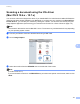
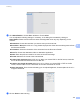



Table Of Contents
- Software User’s Guide
- Applicable models
- Definitions of notes
- Compilation and publication notice
- IMPORTANT NOTE
- Table of Contents
- Section I: Machine operation keys
- Section II: Windows®
- 2 Printing
- 3 Scanning
- Scanning a document using the TWAIN driver
- Scanning a document using the WIA driver
- Scanning a document using the WIA driver (Windows Photo Gallery and Windows Fax and Scan)
- Using Nuance™ PaperPort™ 12SE
- 4 ControlCenter4
- 5 Remote Setup
- 6 Brother PC-FAX Software
- Section III: Apple Macintosh
- 7 Printing and Faxing
- 8 Scanning
- 9 ControlCenter2
- 10 Remote Setup
- Section IV: Using the Scan key
- Index

Scanning
117
8
Scanning a document using the ICA driver
(Mac OS X 10.6.x - 10.7.x) 8
You can scan a document using the ICA driver. If you installed MFL-Pro Suite from the installer CD-ROM, the
ICA driver has been already installed to your Macintosh. If you don’t see your machine in the Print & Fax or
Print & Scan list, you can add your machine by clicking the + button. You can also scan directly using the
Image Capture application (See Choosing your machine from Print & Fax or Print & Scan uu page 119).
Note
The screens in this section are from Mac OS X 10.6.x. The screens on your Macintosh will vary depending
on your operating system version.
a Connect your Brother machine to the Macintosh using a USB cable.
b Launch Image Capture.
c Select the machine from the DEVICES area on the left side of the screen.
Note
(For Mac OS X 10.7.x)
If you cannot see the machine in the DEVICES area, point the mouse pointer over the area, and then click
Show.