
User Manual
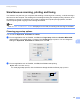
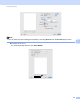
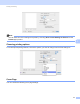


Table Of Contents
- Software User’s Guide
- Applicable models
- Definitions of notes
- Compilation and publication notice
- IMPORTANT NOTE
- Table of Contents
- Section I: Machine operation keys
- Section II: Windows®
- 2 Printing
- 3 Scanning
- Scanning a document using the TWAIN driver
- Scanning a document using the WIA driver
- Scanning a document using the WIA driver (Windows Photo Gallery and Windows Fax and Scan)
- Using Nuance™ PaperPort™ 12SE
- 4 ControlCenter4
- 5 Remote Setup
- 6 Brother PC-FAX Software
- Section III: Apple Macintosh
- 7 Printing and Faxing
- 8 Scanning
- 9 ControlCenter2
- 10 Remote Setup
- Section IV: Using the Scan key
- Index

Printing and Faxing
95
7
Simultaneous scanning, printing and faxing 7
Your machine can print from your computer while sending or receiving a fax in memory, or while scanning a
document into the computer. Fax sending will not be stopped during the computer printing. However, when
the machine is copying or receiving a fax on paper, it pauses the computer printing operation, and then
continues printing when copying or fax receiving has finished.
Note
Even if Toner Low or Toner Ended is displayed on the LCD, fax sending and scanning are available.
Choosing page setup options 7
You can set the Paper Size, Orientation and Scale.
a From an application such as TextEdit, click File, then Page Setup. Make sure Brother MFC-XXXX
(where XXXX is your model name.) is chosen in the Format for pop-up menu. You can change the
settings for Paper Size, Orientation and Scale, then click OK.
b From an application such as TextEdit, click File, then Print to start printing.
(Mac OS X 10.5.8 to 10.6.x)
For more page setup options, click the disclosure triangle beside the Printer pop-up menu.