
User`s guide




Scanning
36
3
Scanning a document using the WIA driver 3
WIA compliant 3
You can choose Windows
®
Image Acquisition (WIA) for scanning images from the machine. You can scan
images directly into the PaperPort™ 12SE viewer that Brother included with your machine or you can scan
images directly into any other application that supports WIA or TWAIN scanning.
Scanning a document into the PC 3
You can use the ADF (automatic document feeder) to scan a whole page.
a Load your document.
b Start the Nuance™ PaperPort™ 12SE software that was installed during the MFL-Pro Suite installation
to scan a document.
Note
The instructions for scanning in this Guide are for when you use Nuance™ PaperPort™ 12SE. The
scanning steps may vary when using other software applications.
c Click Scan Settings from the Desktop tab on the ribbon.
The Scan or Get Photo panel appears on the left side of the screen.
d Click Select.
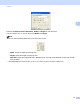
e Choose WIA: Brother MFC-XXXX from the Available Scanners list. (Where XXXX is your model
name.)
f Check the Display scanner dialog box on the Scan or Get Photo panel.
g Click Scan.
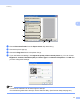
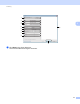
The Scanner Setup dialog box appears.
h Adjust the following settings, if needed, in the Scanner Setup dialog box:
Paper source (1)
Picture type (2)
Adjust the quality of the scanned picture (3)
Page size (4)
Preview (5)
Scan (6)