
User`s guide



Scanning
32
3
c Click PreScan.
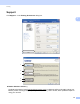
The whole image is scanned into the PC and appears in the Scanning Area (1) of the Scanner Setup
dialog box.
d Press and hold down the left mouse button and drag it over the portion you want to scan.
1 Scanning area
Note
You can enlarge the image using the icon, and then use the icon to restore the image to its
original size.
e Load your document again.
f Click Start.
This time only the chosen area of the document appears in the PaperPort™ 12SE window (or your
application window).
1
1