
User Manual
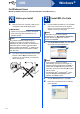
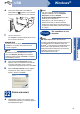
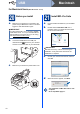
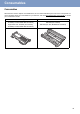
Table Of Contents
- Quick Setup Guide FAX-2950/MFC-7240/MFC-7290
- Start Here
- 1 Unpack the machine and check the components
- 2 Remove the packing material from the machine
- 3 Attach the ADF Document Output Support
- 4 Install the Handset
- 5 Load paper in the paper tray
- 6 Connect the power cord and telephone line
- 7 Set your country
- 8 Choose a Receive Mode
- 9 Set the LCD contrast (if needed)
- 10 Set the date and time
- 11 Enter personal information (Station ID)
- 12 Fax Transmission Report
- 13 Set tone or pulse dialling mode (not available in New Zealand)
- 14 Set the telephone line compatibility
- 15 Set the telephone line type (Middle East and Africa only)
- 16 Dial Prefix (not available in Middle East and Africa)
- 17 Set Daylight Saving Time (Oceania and Asia only)
- 18 Automatic Daylight Savings Time (Middle East and Africa only)
- 19 Choose your Operating System
- For Windows® Users (Windows® XP/XP Professional x64 Edition/Windows Vista®/Windows® 7)
- For Macintosh Users (Mac OS X 10.5.8 - 10.7.x)
- Other Information
- Consumables
- Start Here

15
Windows
®
USB
Windows
®
USB
Macintosh
e Connect the USB cable to the USB port
marked with the symbol on your machine
and then connect the cable to your computer.
f Turn the machine on.
The installation will automatically start. Follow
the on-screen instructions.
g When the On-Line Registration screen
appears, make your selection and follow the
on-screen instructions. Once you have
completed the registration process, click Next.
h When the Setup Complete screen appears,
check the box of the action you want to
perform, and then click Next.
22
Finish and restart
a Click Finish to restart your computer. After
restarting the computer, you must be logged on
with Administrator rights.
IMPORTANT
DO NOT cancel any of the screens during the
installation. It may take a few seconds for all
screens to appear.
Note
For Windows Vista
®
and Windows
®
7 users,
when the Windows Security screen appears,
select the check box and click Install to complete
the installation correctly.
Note
• If an error message appears during the
software installation, run the Installation
Diagnostics located in Start/All
Programs/Brother/MFC-XXXX (where MFC-
XXXX is your model name).
• Depending on your security settings, a
Windows
®
Security or antivirus software
window may appear when using the machine or
its software. Please allow or permit the window
to continue.
Finish
The installation is now
complete.
Note
XML Paper Specification Printer Driver
The XML Paper Specification Printer Driver is the
most suitable driver for Windows Vista
®
and
Windows
®
7 when printing from applications that
use the XML Paper Specification documents.
Please download the latest driver by accessing
the Brother Solutions Center at
http://solutions.brother.com/
.