
Windows Vista/ Windows 7 Installation Guide



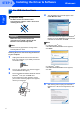
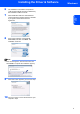

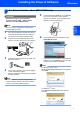
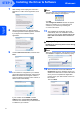
Table Of Contents

Installing the Driver & Software
7
Windows
®
Windows
®
Network
2
For Network Interface Users (MFC-7225N only)
Important
Make sure that you have finished the
instructions from STEP 1 Setting Up the
Machine in the Quick Setup Guide.
Note
Please close any applications running before
installing MFL-Pro Suite.
1 Turn off and unplug the machine from the AC
outlet and disconnect it from your network, if
you already connected an interface cable.
2 Connect the network interface cable to the
machine, and then connect it to your network.
3 Plug the AC power cord into an AC outlet. Turn
the power switch on.
4 Turn on your computer. (You must be logged
on with Administrator rights.)
Close any applications running before installing
the MFL-Pro Suite.
Note
Before installation, if you are using personal
firewall software, disable it. After the installation,
restart your personal firewall software.
5 Put the supplied CD-ROM into your CD-ROM
drive. If the model name screen appears,
choose your machine. If the language screen
appears, choose your language.
6 The CD-ROM main menu will appear. Click
Install MFL-Pro Suite.
If this window does not appear, use Windows
®
Explorer to run the start.exe program from the
root folder of the Brother CD-ROM.
Note
For Windows Vista
®
users:
When the User Account Control screen appears,
click Allow.
For Windows
®
7 users:
If the User Account Control screen appears,
click Yes.