
User's Manual




Table Of Contents
- USER’S GUIDE FAX-2820/FAX-2910/FAX-2920/MFC-7220/MFC-7225N
- Brother numbers
- Ordering accessories and supplies
- Safety precautions
- Quick Reference Guide
- Table of Contents
- 1 Introduction
- 2 Getting started
- Initial setup
- General Setup
- Setting the Mode Timer (FAX-2820, FAX-2910 and FAX-2920 only)
- Setting the Mode Timer (MFC-7220 and MFC-7225N only)
- Setting the Paper Type
- Setting the Paper Size
- Setting the Ring Volume
- Setting the Beeper Volume
- Setting the Speaker Volume
- Setting the Handset Volume
- Choosing the Handset Volume (For Volume Amplify)
- Setting Volume Amplify
- Turning on Automatic Daylight Savings Time
- Toner Save
- Sleep Time
- Setting the LCD Contrast
- Security
- TX Lock (FAX-2820, FAX-2910 and MFC-7220 only)
- Memory Security (FAX-2920 and MFC-7225N only)
- Setting Lock
- 3 Setup Send
- 4 Setup Receive
- 5 Quick-Dial numbers and dialing options
- 6 Remote Fax Options
- 7 Printing reports
- 8 Making copies
- 9 Software and Network Features (MFC-7220 and MFC-7225N only)
- 10 Important information
- Standard telephone and FCC Notices These notices are in effect on models sold and used in the United States only.
- Federal Communications Commission (FCC) Declaration of Conformity (USA only)
- Industry Canada Compliance Statement (Canada only)
- Disconnect device
- LAN connection (MFC-7225N only)
- Laser safety
- FDA regulations
- Important safety instructions
- Trademarks
- 11 Troubleshooting and routine maintenance
- Appendix A
- Appendix B
- Glossary
- Specifications
- Product description
- General
- Print media
- Copy
- Fax
- Scanner (MFC-7220 and MFC-7225N only)
- Printer (not available for FAX-2910)
- Interfaces (not available for FAX-2910)
- Download the optional software from the Brother Web Site (FAX-2820 and FAX-2920 users only)
- At the same time, you can download the manual for setting up and using the PC-Fax software.
- Computer requirements (not available for FAX-2910)
- Consumable items
- Network (LAN) (MFC-7225N only)
- Index
- Remote Retrieval Access card
- brother USA/CAN
Chapter 11
11 - 11
If you are having difficulty with your machine
If you think there is a problem, make a copy first. If the copy looks good, the problem is probably
not your machine. Check the chart below and follow the troubleshooting tips.
The Brother Solutions Center offers the latest FAQs and troubleshooting tips.
Visit us at http://solutions.brother.com
.
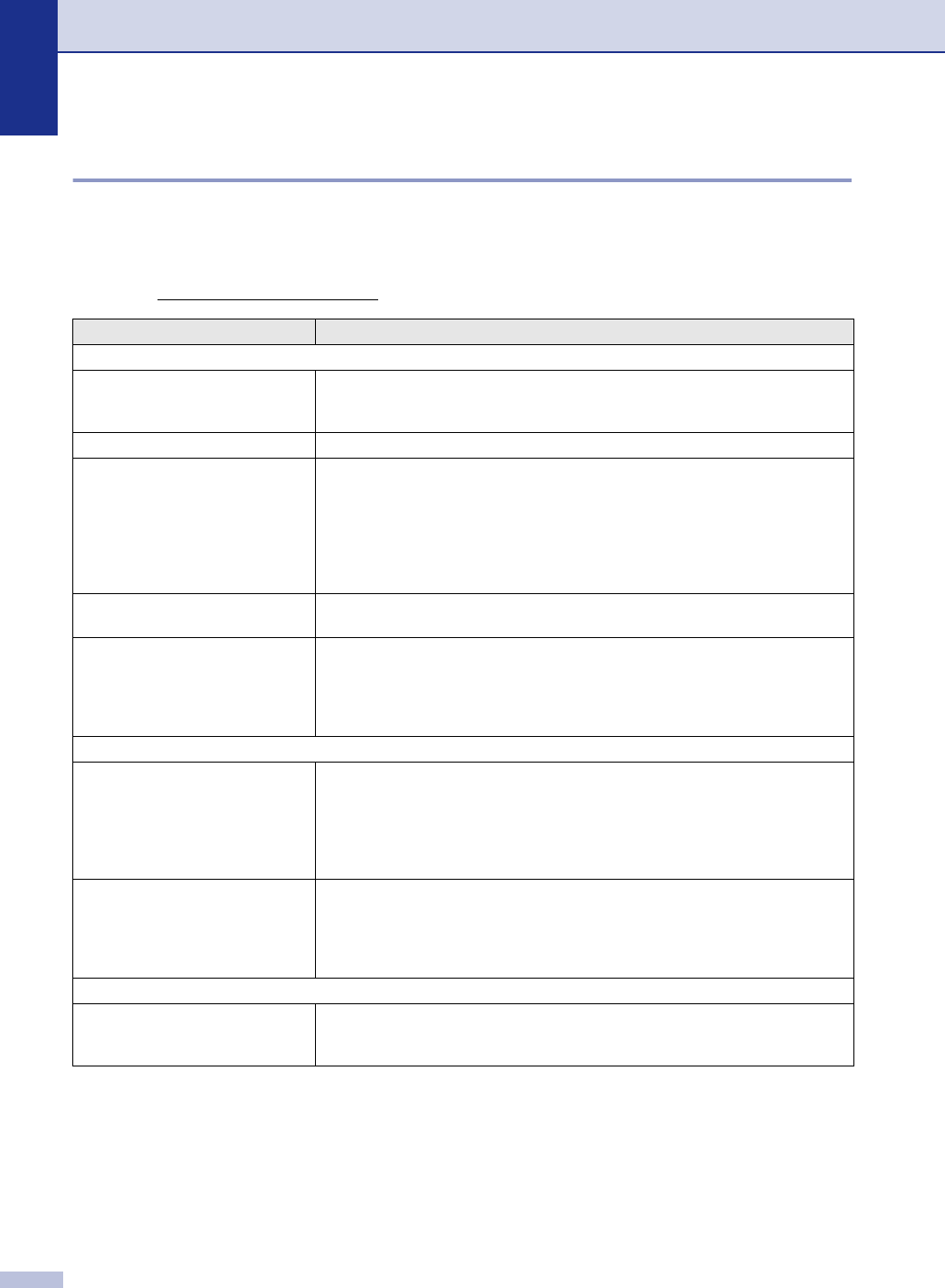
DIFFICULTY SUGGESTIONS
Printing or Receiving Faxes
Condensed print and horizontal
streaks or the top and bottom of
sentences are cut off.
You probably had a bad connection, with static or interference on the telephone
line. Ask the other party to send the fax again. If there is still a problem, call Brother
Customer Service at 1-800-284-4329 (in USA) or 1-877-BROTHER (in Canada).
Poor print quality See Improving the print quality on page 11-16.
Vertical black lines when receiving Sometimes you may see vertical streaks/black lines on the faxes you receive.
Your machine’s primary corona wire may be dirty, or the sending party’s fax
scanner may be dirty. Clean your primary corona wire (See Cleaning the corona
wire on page 11-24), or ask the sender to make a copy to see if the problem is with
the sending machine. Try receiving from another fax machine. If the problem
continues, call Brother Customer Service at 1-800-284-4329 (in USA) or
1-877-BROTHER (in Canada).
Horizontal streaks; lines are
missing.
You may get a fax with horizontal streaks or with missing lines. Usually this is
caused by a poor telephone connection. Ask the other party to send the fax again.
Received faxes appear as split or
blank pages.
If the received faxes are divided and printed on two pages or if you get an extra
blank page, your Paper Size setting may not be correct for the paper you are
using. (See Setting the Paper Size on page 2-4.) Make sure that auto reduction
menu setting is turned on. (See Printing a reduced incoming fax (Auto Reduction)
on page 4-4.)
Phone Line or Connections
Dialing does not work. Check for a dial tone. Change Tone/Pulse setting. (See Tone or Pulse (For
Canada only) on page 5-4.) Check all line cord connections and that the curled
handset cord is not in the EXT jack. Check power cord connection. Send a manual
fax by pressing Hook/Hold or by lifting the handset of the external phone and
dialing the number. Send a manual fax by lifting the handset and dialing the
number. Wait to hear fax receiving tones before pressing Start.
The machine does not answer
when called.
Make sure the machine is in the correct receiving mode for your setup. (See Basic
sending operations on page 3-4.) Check for a dial tone. If possible, call your
machine to hear it answer. If there is still no answer, check the telephone line cord
connection. If there is no ringing when you call your machine, ask your telephone
company to check the line.
Sending Faxes
Poor fax send quality Change your resolution to Fine or S.Fine. Make a copy to check your machine’s
scanner operation. If the copy quality is not good, clean the scanner. (See
Cleaning the scanner glass on page 11-22.)