
User's Manual




Table Of Contents
- USER’S GUIDE FAX-2820/FAX-2910/FAX-2920/MFC-7220/MFC-7225N
- Brother numbers
- Ordering accessories and supplies
- Safety precautions
- Quick Reference Guide
- Table of Contents
- 1 Introduction
- 2 Getting started
- Initial setup
- General Setup
- Setting the Mode Timer (FAX-2820, FAX-2910 and FAX-2920 only)
- Setting the Mode Timer (MFC-7220 and MFC-7225N only)
- Setting the Paper Type
- Setting the Paper Size
- Setting the Ring Volume
- Setting the Beeper Volume
- Setting the Speaker Volume
- Setting the Handset Volume
- Choosing the Handset Volume (For Volume Amplify)
- Setting Volume Amplify
- Turning on Automatic Daylight Savings Time
- Toner Save
- Sleep Time
- Setting the LCD Contrast
- Security
- TX Lock (FAX-2820, FAX-2910 and MFC-7220 only)
- Memory Security (FAX-2920 and MFC-7225N only)
- Setting Lock
- 3 Setup Send
- 4 Setup Receive
- 5 Quick-Dial numbers and dialing options
- 6 Remote Fax Options
- 7 Printing reports
- 8 Making copies
- 9 Software and Network Features (MFC-7220 and MFC-7225N only)
- 10 Important information
- Standard telephone and FCC Notices These notices are in effect on models sold and used in the United States only.
- Federal Communications Commission (FCC) Declaration of Conformity (USA only)
- Industry Canada Compliance Statement (Canada only)
- Disconnect device
- LAN connection (MFC-7225N only)
- Laser safety
- FDA regulations
- Important safety instructions
- Trademarks
- 11 Troubleshooting and routine maintenance
- Appendix A
- Appendix B
- Glossary
- Specifications
- Product description
- General
- Print media
- Copy
- Fax
- Scanner (MFC-7220 and MFC-7225N only)
- Printer (not available for FAX-2910)
- Interfaces (not available for FAX-2910)
- Download the optional software from the Brother Web Site (FAX-2820 and FAX-2920 users only)
- At the same time, you can download the manual for setting up and using the PC-Fax software.
- Computer requirements (not available for FAX-2910)
- Consumable items
- Network (LAN) (MFC-7225N only)
- Index
- Remote Retrieval Access card
- brother USA/CAN
Troubleshooting and routine maintenance
11 - 12
11
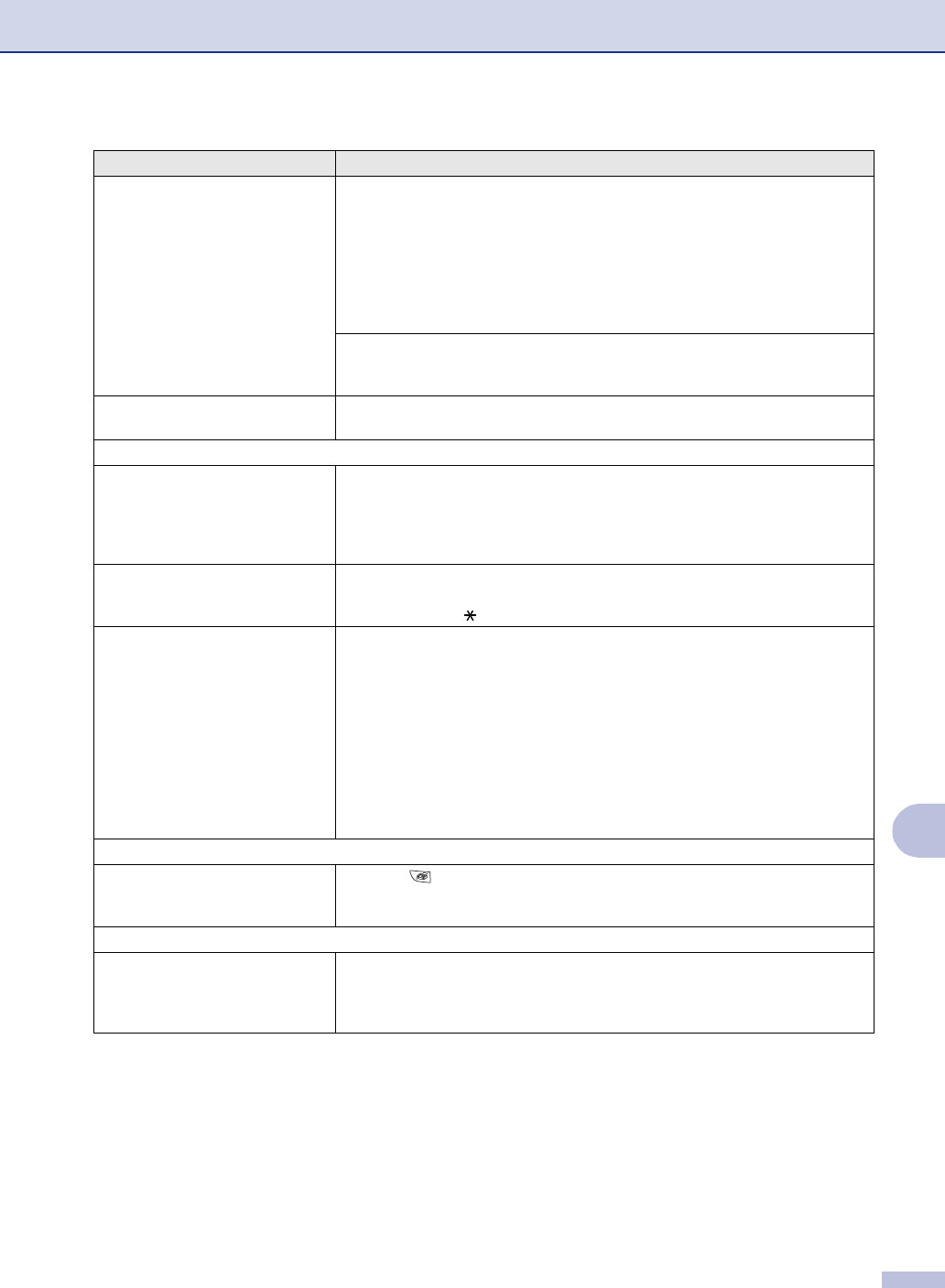
Transmission Verification Report
says ‘RESULT:NG’ or
‘RESULT:ERROR’.
There is probably temporary noise or static on the line. Try sending the fax again.
If you send a PC FAX message and get ‘RESULT:NG’ on the Transmission
Verification Report, your machine may be out of memory. To gain extra memory,
you can turn off Fax Storage (See Turning off Remote Fax Options on page 6-4),
print fax messages in memory (See Printing a fax from the memory on page 4-5)
or cancel a Delayed Fax or Polling Job (See Canceling a fax in progress on page
3-8). If the problem continues, ask the telephone company to check your phone
line.
If you frequently get transmission errors due to possible interference on the phone
line, try changing the Compatibility setting to Basic. (See Compatibility on page
11-20.)
Vertical black lines when sending. If the copy you made shows the same problem, your scanner is dirty.
(See Cleaning the scanner glass on page 11-22.)
Handling Incoming Calls
The machine ‘Hears’ Voice as CNG
Tone.
If Easy Receive is set to On, your machine is more sensitive to sounds. It may
mistakenly interpret certain voices or music on the line as a calling fax machine
and respond with fax receiving tones. Deactivate the machine by pressing
Stop/Exit. Try avoiding this problem by turning Easy Receive to Off. (See Easy
Receive on page 4-3.)
Sending a Fax Call to the machine. If you answered at the machine, press Start and hang up immediately. If you
answered on an external or extension phone, press your Fax Receive Code
(default setting is ( 51). When your machine answers, hang up.
Custom features on a single line. If you have Call Waiting, Call Waiting/Caller ID, RingMaster, Voice Mail, an
answering machine, an alarm system or other custom feature on a single phone
line with your machine, it may create a problem sending or receiving faxes.
For Example: Your Brother machine handles the Caller ID subscriber services.
However, if you subscribe to Call Waiting or some other custom service and its
signal comes through the line while your machine is sending or receiving a fax, the
signal can temporarily interrupt or disrupt the faxes. Brother’s ECM feature should
help overcome this problem. This condition is related to the telephone system
industry and is common to all devices that send and receive information on a
single, shared line with custom features. If avoiding a slight interruption is crucial
to your business, a separate line with no custom features is recommended.
Menu Setting Difficulties
The machine beeps when you try to
access the Setup Receive and
Setup Send menus.
If the Fax key is not illuminated, press it to turn on Fax mode. The Setup
Receive setting (Menu/Set, 2, 1) and Setup Send setting (Menu/Set, 2, 2) are
available only when the machine is in Fax mode.
Copy Quality Difficulties
Vertical streaks appear in copies. Sometimes you may see vertical streaks on your copies. Either the scanner or the
primary corona wire is dirty. Clean them both. (See Cleaning the scanner glass on
page 11-22, Cleaning the laser scanner window on page 11-22 and Cleaning the
drum unit on page 11-17.)
DIFFICULTY SUGGESTIONS