
Installation Instructions
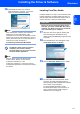

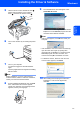
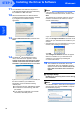
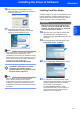
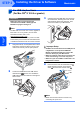

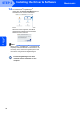
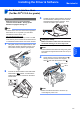

Table Of Contents
- Quick Setup Guide MFC-680CN
- Table of Contents
- Getting Started
- STEP 1 Setting Up the Machine
- 1 Removing the protective parts
- 2 Connecting the handset
- 3 Loading paper
- 4 Connecting the power cord and telephone line
- 5 Installing the ink cartridges
- 6 Print quality check
- 7 Setting the LCD contrast
- 8 Setting the date and time
- 9 Setting your station ID
- 10 Setting tone or pulse dialling mode
- 11 Setting the telephone line type
- 12 Choosing a Receive Mode
- 13 Setting up the TAD
- STEP 2 Installing the Driver & Software
- For Network Users
- Installing FaceFilter Studio Help
- Consumables
- brother UK/IRE/GEN/SAF
Installing the Driver & Software
27
Macintosh
®
Macintosh
®
Network
4
For Network Interface Users
(For Mac OS
®
X 10.2.4 or greater)
Important
Make sure that you have finished the
instructions from STEP 1 Setting Up the
Machine on pages 4 through 13.
Note
•For Mac OS
®
X 10.2.0 to 10.2.3 users, upgrade to
Mac OS
®
X 10.2.4 or greater. (For the latest
information for Mac OS
®
X, visit
http://solutions.brother.com
)
• Make sure there are no memory cards or a USB
Flash memory drive inserted into the media drives
or USB direct interface at the front of the machine.
1 Using both hands, use the plastic tabs on both
sides of the machine to lift the scanner cover
until it locks securely into the open position.
2 Connect the network cable to the LAN socket
marked with a symbol. You will find the
LAN socket inside the machine on the left as
shown below.
3 Carefully guide the network cable to the trench
as shown below, following the trench around
and toward the back of the machine. Then,
connect the cable to your network.
Improper Setup
Make sure that the cable does not restrict the
cover from closing, or an error may occur.
Note
If both USB and LAN cables are being used, guide
both cables through the trench with one on top of
the other.
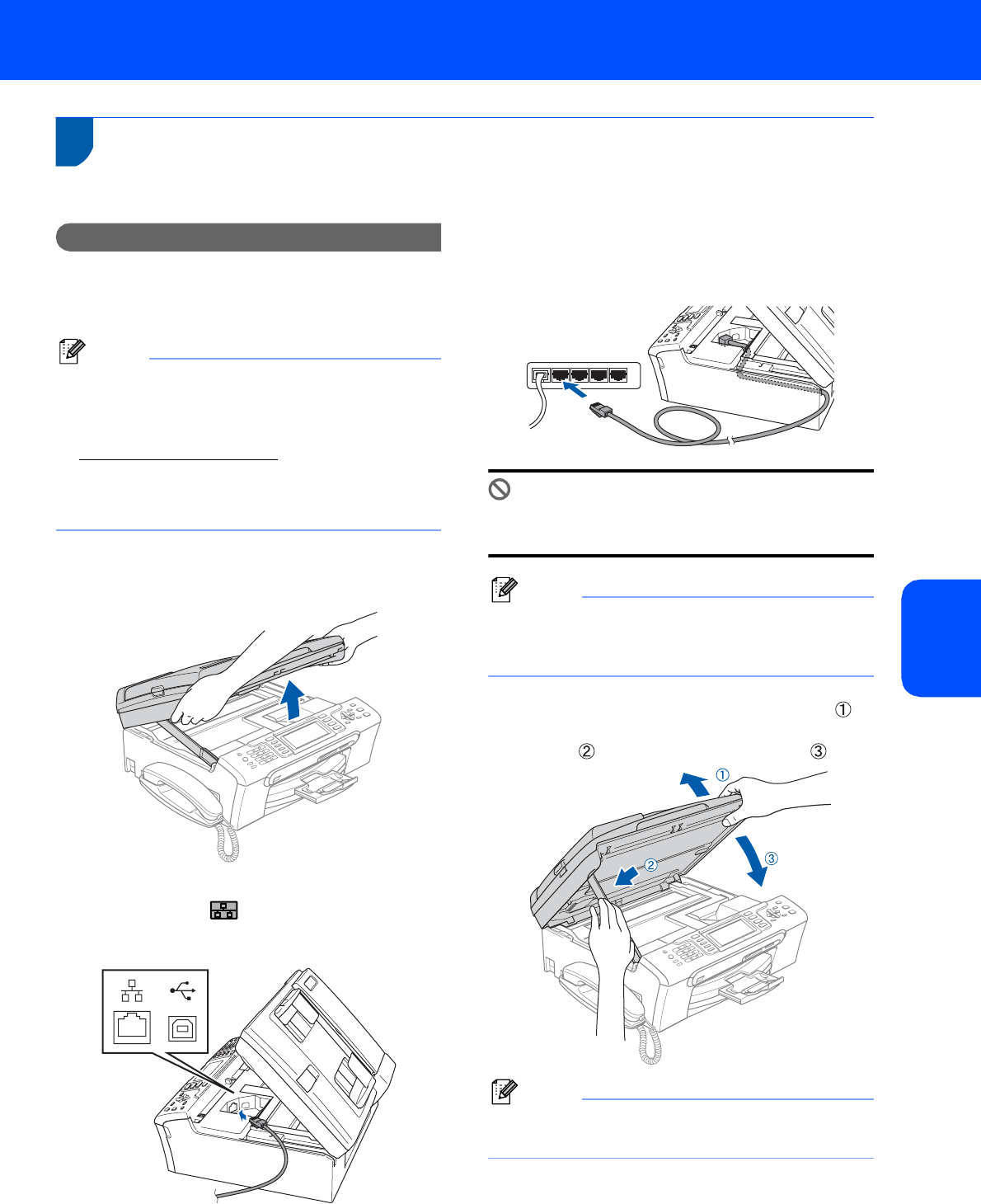
4 Lift the scanner cover to release the lock .
Gently push the scanner cover support
down and close the scanner cover .
Note
Make sure that the machine is turned on by
connecting the power cord.