
Installation Instructions




Table Of Contents
- Quick Setup Guide MFC-680CN
- Table of Contents
- Getting Started
- STEP 1 Setting Up the Machine
- 1 Removing the protective parts
- 2 Connecting the handset
- 3 Loading paper
- 4 Connecting the power cord and telephone line
- 5 Installing the ink cartridges
- 6 Print quality check
- 7 Setting the LCD contrast
- 8 Setting the date and time
- 9 Setting your station ID
- 10 Setting tone or pulse dialling mode
- 11 Setting the telephone line type
- 12 Choosing a Receive Mode
- 13 Setting up the TAD
- STEP 2 Installing the Driver & Software
- For Network Users
- Installing FaceFilter Studio Help
- Consumables
- brother UK/IRE/GEN/SAF
Installing the Driver & Software
17
Windows
®
USB
Windows
®
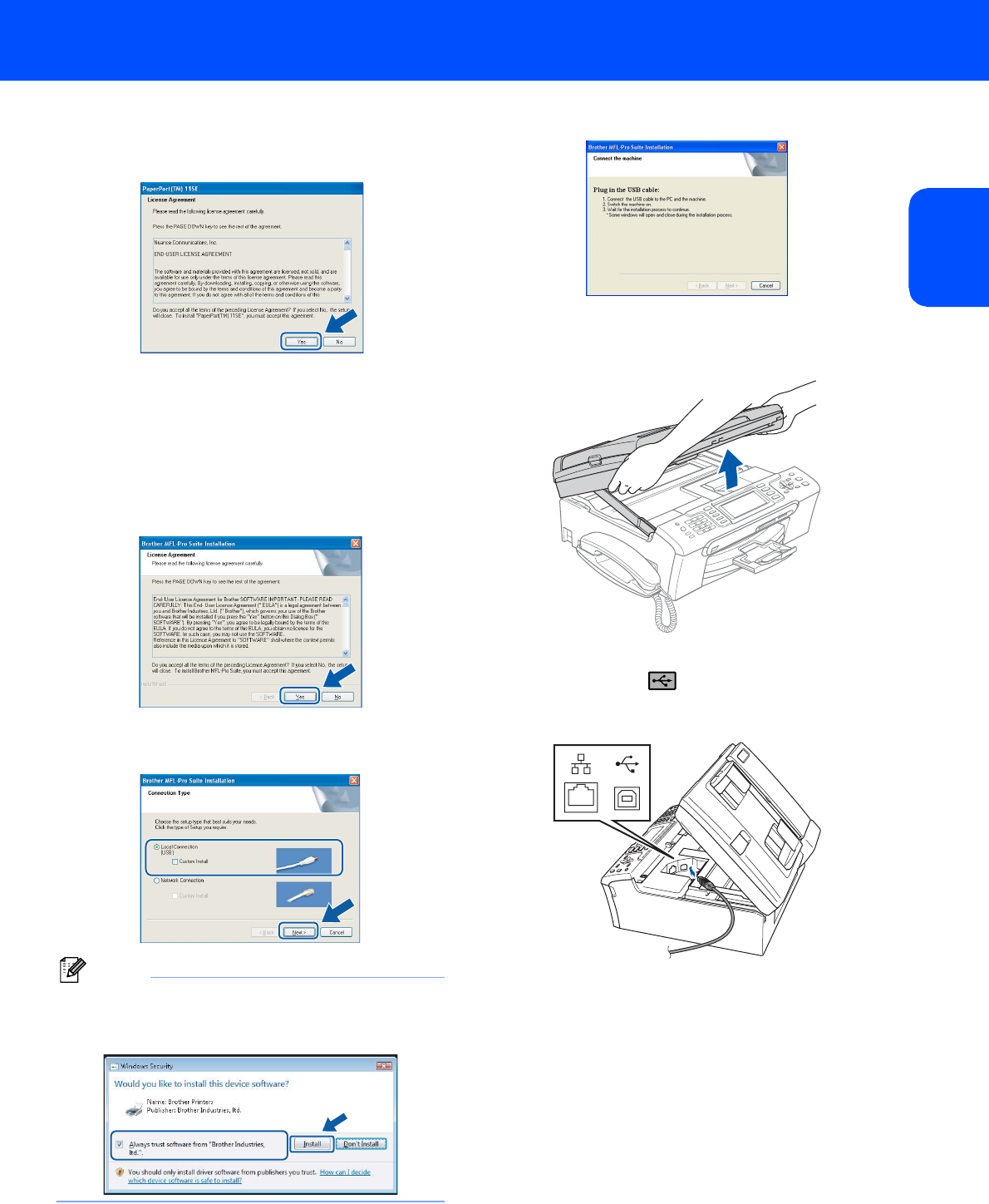
5 After reading and accepting the ScanSoft™
PaperPort™ 11SE License Agreement,
click Yes.
6 The installation of ScanSoft™ PaperPort™
11SE will automatically start and is followed by
the installation of MFL-Pro Suite.
7 When the Brother MFL-Pro Suite Software
License Agreement window appears, click Yes
if you agree to the Software License
Agreement.
8 Choose Local Connection, and then click
Next. The installation continues.
Note
For Windows Vista™, when this screen appears,
click the check box and click Install to complete
the installation properly.
9 When this screen appears, go to the next step.
10 Using both hands, use the plastic tabs on both
sides of the machine to lift the scanner cover
until it locks securely into the open position.
11 Connect the USB cable to the USB socket
marked with a symbol. You will find the
USB socket inside the machine on the right as
shown below.